How to Test Airbridge Deeplinks: A Step-by-Step Dashboard Debugging Guide

You set up an Airbridge tracking link with a deeplink destination, hit "Create," and moved on. But clicking a link once on your own phone is not a test: it is a guess. A broken deeplink silently fails for every user who does not match your exact device and browser combination. The damage shows up later, in campaigns where users install the app and land on the home screen instead of the product page your ad was promoting.
Airbridge's deep linking platform includes a dedicated Testing Console that walks you through four structured test scenarios before you spend a dollar on traffic. Each test ends with a direct link to the Actuals Report so you can confirm the Deeplink Open event fired. This guide shows you where the console lives, how to run every test, and what each common failure looks like on the inside.
Key Takeaways
-
An Airbridge deeplink is a URL that navigates users to a specific in-app destination. Airbridge supports three methods: URL Scheme (
appScheme://), App Links (Android,https://), and Universal Links (iOS,https://). The platform selects the best method automatically based on OS, browser, and app installation status. -
The Testing Console lives at Settings > Testing Console > Deep Linking. It is separate from the tracking link builder and requires two pre-conditions plus a readiness check before any test can run.
-
Up to four tests cover two scenarios: URL Scheme and Universal Link/App Link (always required for app-installed users), Custom Domain (only if you use a custom domain), and Deferred Deep Link (for users without the app). Most setups run three tests total.
-
The Actuals Report is where success is confirmed. Look for the Deeplink Open event after completing each scenario. A missing event usually means ATT consent was not given on the test device.
-
iOS has two silent failure modes that pass the visual test but produce no event: ATT/Extended Privacy Control (EPC) consent not granted, and a missing path segment in the URL scheme deep link.
What to Register in Airbridge Before Running a Deeplink Test
1. Register Deep Link Info at Tracking Link > Deep Links
Go to [Tracking Link] > [Deep Links] in the Airbridge dashboard. This is where you give Airbridge the technical identifiers it needs to route users correctly on each platform.
For Android: URL scheme, package name, and sha256_cert_fingerprints. For iOS: three separate fields in the Airbridge dashboard: iOS URI Scheme, Bundle ID, and Team ID (App ID Prefix). All three are available from the Apple Developer Dashboard under App Identifiers.
Airbridge supports three deep linking methods: URL scheme deep links, App Links (Android), and Universal Links (iOS). The platform selects the most appropriate method automatically based on the OS, browser, and app installation status. All three need to be registered to cover every user path. For a detailed walkthrough, see Apply Deep Links to Tracking Links.
2. Set Up the Fallback Path at Settings > App Settings
Users who click a deeplink without the app installed need somewhere to go. Under [Settings] > [App Settings], fill in the "Platform" section with your App Store and Google Play URLs. Without this, deferred deep linking has no redirect destination after the user installs the app.
3. Check the Platform Readiness Status Before Testing
Once you enter the Testing Console, each platform displays either "Ready for testing" or "Info incomplete." Click the tooltip next to the platform name to see exactly which fields are missing. If you just completed setup in a separate browser tab, refresh the console tab before reading the status. The console does not auto-update.
This guide assumes your developer has already implemented the trackDeeplink SDK call. If not, confirm implementation against the Airbridge developer guide first, since the Deeplink Open event will not appear in reports without it.
How to Access the Airbridge Deeplink Testing Console
1. Navigate to Settings > Testing Console > Deep Linking
Airbridge deeplink testing follows a step-by-step dashboard flow: pre-check setup, run the Testing Console, then verify in the Actuals Report. From the dashboard, go to [Settings] > [Testing Console] and select the [Deep Linking] tab. This is the only dedicated testing environment for verifying deeplink behavior.
2. Enter and Encode Your URL Scheme Deep Link
Enter the URL scheme deep link you want to test, for example: myapp://productpage?id=123. Two requirements:
-
The input field accepts URL scheme deep links only (not HTTPS Universal Links or App Links). Airbridge uses this to test all three methods indirectly.
-
URL-encode the deep link before entering it. Special characters, spaces, and non-standard punctuation must be percent-encoded. An unencoded URL breaks the standard format and the deeplink will not fire.
Use the switch icon on the right of the input field to toggle between free-text input and a path/parameter builder if that makes encoding easier.
Why Your Airbridge Deeplink Test Is Failing: 5 Root Causes and Fixes
Before running the tests, knowing the most common failure points helps you spot and fix issues as they occur. These five causes account for the majority of Airbridge deeplink test failures.
1. "Info Incomplete" Status in the Testing Console
At least one required field is missing for that platform. Click the tooltip to identify it. The most commonly missed items: sha256_cert_fingerprints for Android App Links, and the iOS App ID (App ID Prefix + Bundle ID) for Universal Links. Both require developer input. Fix these at Tracking Link > Deep Links, then return to the console and refresh.
2. Deeplink Open Event Not Appearing on iOS
Extended Privacy Control (EPC) is on by default in Airbridge. Without ATT consent on the test device, the Deeplink Open event fails silently on iOS. The link may have opened the correct in-app page: the event collection is what failed, not the deeplink itself. Check both the EPC settings in Airbridge and the ATT status on your test device before concluding the deeplink is broken. See the iOS deeplink FAQ for more detail.
3. Deferred Deep Link Not Working on iOS
If you are on the Airbridge DeepLink Plan, set setAutoDetermineTrackingAuthorizationTimeout to 0 seconds in the ATT prompt configuration of the Airbridge iOS SDK. The DeepLink Plan does not use IDFA for attribution, so the ATT wait window is unnecessary for deferred deep linking.
If you are on Core Plan or Growth Plan, do not change this value without consulting your developer. The default 30-second window exists to collect IDFA alongside the install event — setting it to 0 skips that window and can reduce attribution quality.
4. Deep Link URL Missing a Path on iOS
This is the most common silent failure on iOS ad placements, particularly Instagram. The URL scheme deep link registered in Airbridge must include a path segment between the scheme and any query parameters (iOS deeplink FAQ).
Broken: myapp://?type=blog&content=promo
Working: myapp://productpage?type=blog&content=promo
Without the path, iOS deep linking fails on certain browsers and ad environments. This is a requirement enforced by iOS, not Airbridge.
5. Deep Link URL Not Encoded
URL-encode the deep link before entering it into the Testing Console input field. If the link contains spaces, special characters, or parameters with values containing & or =, those characters must be percent-encoded. An unencoded URL breaks the standard format before Airbridge even processes it.
Use the path/parameter builder mode (toggle via the switch icon on the input field) if you want Airbridge to handle the encoding automatically.
Stopover Airpage: a fix for iOS first-click redirects from non-Safari apps. If iOS users with the app installed are being sent to the App Store when clicking from Instagram, Line, or other third-party apps, enable the Stopover Airpage option when creating the tracking link. This is a general deeplink reliability feature available on any tracking link with a deeplink destination — not limited to re-engagement. It is particularly recommended for re-engagement campaigns, but it also benefits UA campaigns where users click from in-app browsers.
Learn more in Additional Options for Deep Linking.
Want to see how Test Airbridge deeplinks works with your data?
Get hands-on with Airbridge and see real results.
Try It Free →How to Test Airbridge Deeplinks When the App Is Already Installed
This is the most important scenario for re-engagement campaigns. The user has your app, clicks a link, and should land on a specific in-app page, not the home screen.
Before each test: Use a physical mobile device with the app installed and opened at least once. Set the default browser to Chrome or Safari. The testing console only supports those two browsers. Other browsers will produce unreliable results regardless of your configuration.
| Test | What It Checks | When to Run |
|---|---|---|
| URL Scheme Test | URL scheme deeplink opens the correct in-app location | Always |
| Universal Link / App Link Test | HTTPS-based deep linking method works on that OS | Always |
| Custom Domain Test | Custom short link domain (e.g., links.yourbrand.com instead of Airbridge's default) triggers deep linking correctly | Only if using a custom domain |
For each test: click the test name, scan the QR code on your test device (or use the URL shown below the QR code), then tap Trigger deep linking on the testing page. The console runs automatically across five items (Airbridge Testing Guide). If any item fails, fix instructions appear inline. Run the test again after fixing.
After all items pass, click "Check event in the report." A pre-set Actuals Report opens in a new tab. This is where you confirm the deeplink fired correctly.
How to Test Deferred Deep Linking When the App Is Not Installed
1. What Deferred Deep Linking Does and Why It Matters for UA
Deferred deep linking covers a critical UA scenario: the user clicks your tracking link, does not have the app, installs it from the App Store or Google Play, then opens the app for the first time. Airbridge routes that user to the specific in-app page from the original ad, not the default home screen.
This matters for conversion. If a user sees your ad for a specific product page, installs the app, and lands on the home screen instead, the continuity of the experience breaks. The in-app conversion that your ad budget was optimized to drive does not happen.
Deferred deep linking has a 1-hour time limit. If the user installs and opens the app more than 1 hour after clicking the tracking link, Airbridge sends them to the home screen instead of the deeplinked page. Plan your UA creative flows and post-install messaging with this window in mind.
2. How to Run the Deferred Deep Link Test
Use a device with the app not installed (delete it if needed). Set Chrome or Safari as the default browser. Scan the QR code and click Trigger deep linking on the testing page. The console checks three items automatically.
If you are on the Airbridge DeepLink Plan, your developer should configure setAutoDetermineTrackingAuthorizationTimeout to 0 seconds in the iOS SDK. Core Plan and Growth Plan users should leave the default (30 seconds) unless advised otherwise, as this affects IDFA collection for attribution.
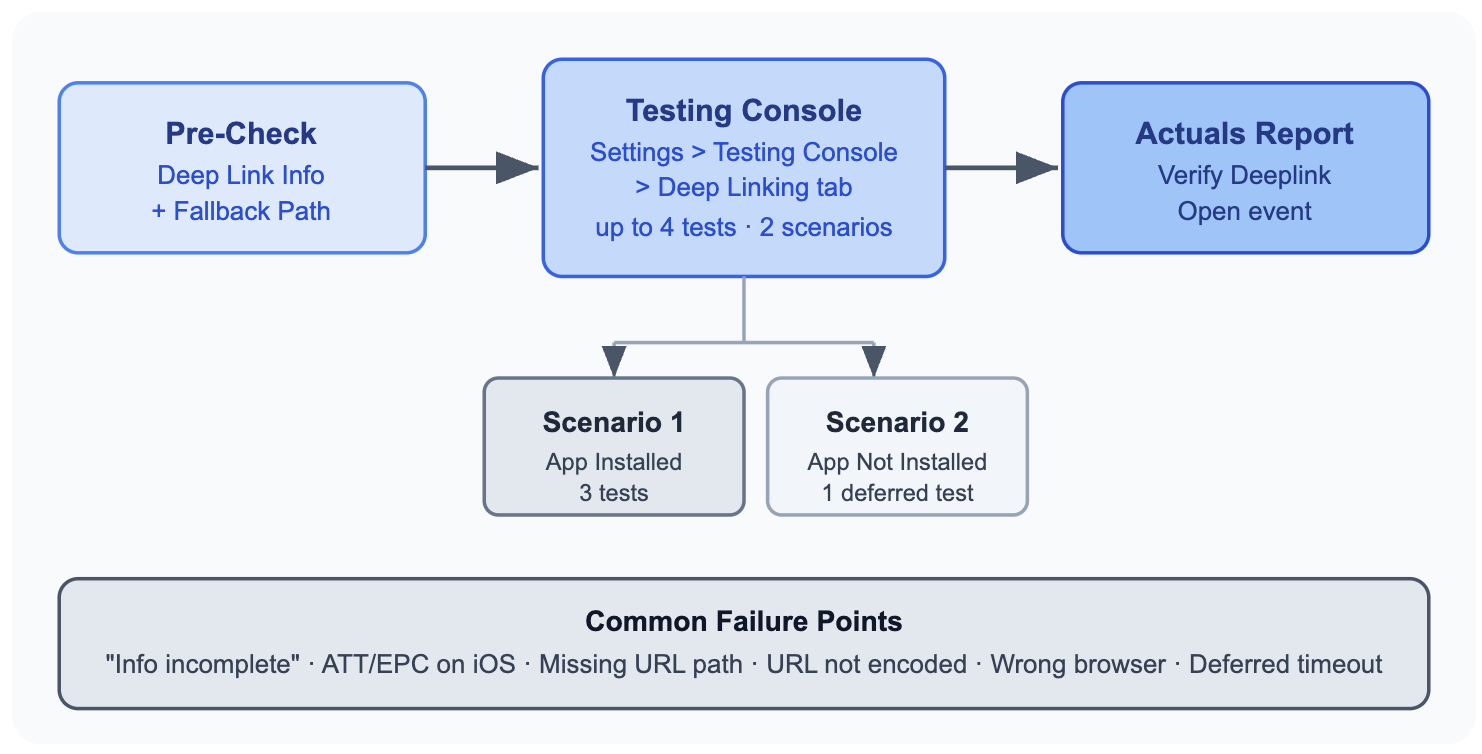
The Airbridge deeplink testing workflow: pre-check, test, verify.
How to Confirm Airbridge Deeplink Results in the Actuals Report
1. How to Open the Pre-Set Actuals Report
After every test where all items pass, click "Check event in the report." Airbridge opens a pre-configured Actuals Report in a new tab, already filtered to the deeplink data from your test session.
2. What Deeplink Metrics to Look For in the Report
The key event to confirm is Deeplink Open. This fires when the SDK detects the app was launched via a deeplink. The pre-set Actuals Report may also show Click and Install as standard metrics, but Deeplink Open is the confirmation that deep linking worked end-to-end.
If Deeplink Open shows 0 after a completed test, two causes cover most cases.
Extended Privacy Control (EPC) is enabled by default in Airbridge. On iOS, if the test device has not responded to the ATT (App Tracking Transparency) prompt, or the user opted out, Deeplink Open event collection fails at the OS level. This is not a configuration error: it is privacy protection enforced by iOS. Before testing on iOS, respond affirmatively to the ATT prompt on the test device.
The Deeplink Open event requires an SDK call. Specifically, the trackDeeplink function must be called in the SDK when the app opens via a deeplink. If your developer has not implemented the deep linking handlers, the link may route users correctly but produce no event in the report. Confirm SDK implementation against the Airbridge developer guide before testing.
Verify Every Airbridge Deeplink Before Your Campaign Goes Live
A deeplink that looks correct in the dashboard is not a verified deeplink. Run all applicable tests in the Testing Console before any campaign goes live (two or three tests for Scenario 1 depending on your domain setup, plus the deferred test for Scenario 2). Check the Actuals Report for the Deeplink Open event. For iOS deferred deep linking, confirm ATT configuration with your developer before launch.
If you have not yet walked through the Testing Console, start with the official deeplink testing guide to build a verified baseline for every link you deploy.



Ready to transform your mobile growth?
Learn how Airbridge helps leading brands measure and optimize every touchpoint.