Why Your Universal Links Open in Safari Instead of the App

You tap a link that should drop straight into your app, and Safari opens instead. The app is installed. The link looks correct. Yet iOS quietly treats it as an ordinary web page.
When Universal Links fail this way, the problem is almost never the link itself. It is the chain of trust behind it: your apple-app-site-association file, your Associated Domains entitlement, and the cached decision iOS makes before it ever opens your app. Get one detail wrong in that chain and every tap lands in the browser.
Key Takeaways
-
Universal Links break silently. iOS does not show an error when the association fails. It just opens Safari, which is why the cause is so hard to spot.
-
The AASA file is the usual culprit. A wrong App ID, a syntax error, or a redirect on the file path will sink the whole setup.
-
The entitlement and the file must agree. Your
applinks:entitlement and the apple-app-site-association file have to reference the same domain and the same App ID. -
Apple caches the decision. Since iOS 14, a content delivery network fetches and caches your file, so edits do not take effect instantly.
-
A direct paste never opens the app. A Universal Link only fires on a real user tap from another app, not from typing a URL into the address bar.
What a Universal Link Is and Why It Sometimes Opens in Safari
A Universal Link is a standard web URL that iOS can route directly into your app when the app is installed, and fall back to your website when it is not. There is no custom scheme and no confirmation prompt. The same https:// link works whether the app is present or not.
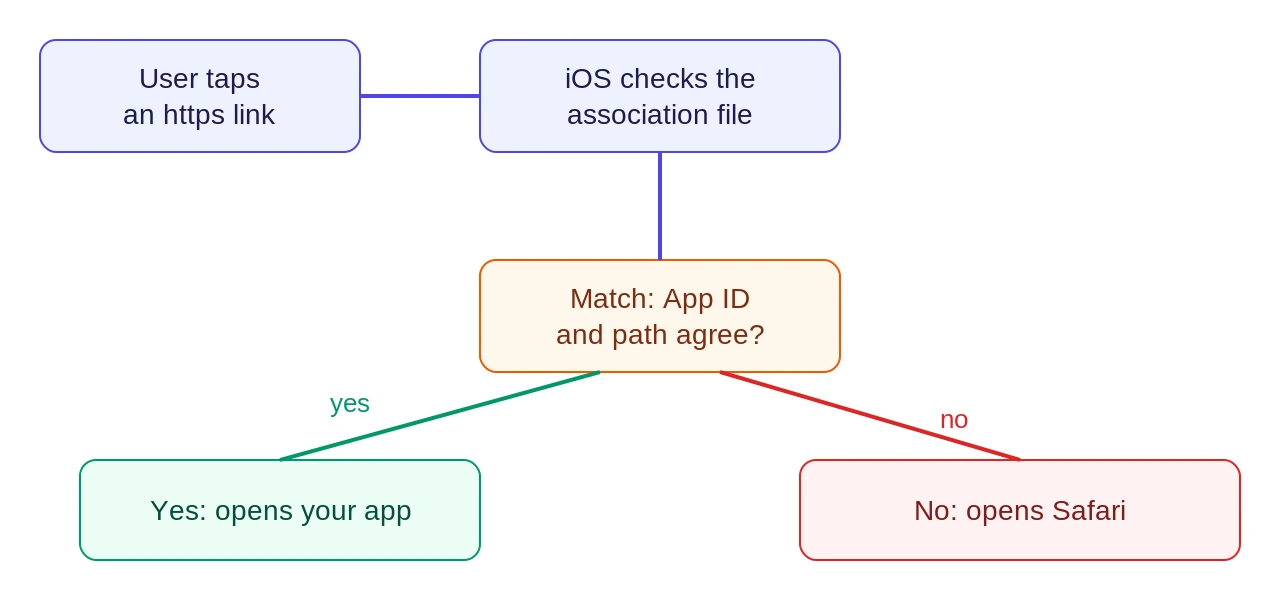
For that routing to happen, iOS has to trust that your app owns the domain. It checks this through a file your domain serves at /.well-known/apple-app-site-association, paired with an Associated Domains entitlement inside your app. When both sides match, the tap opens the app. When anything is off, iOS falls back to the safest option: it opens the web page in Safari.
This is the exact moment most teams get stuck. Search engines surface the question "why do universal links open in safari instead of app" more often than any other deep linking issue, precisely because the failure is invisible. There is no crash, no log line, and no warning. The link simply behaves like a normal URL.
The Most Common Reasons Universal Links Aren't Working
Almost every case of a broken Universal Link traces back to a short list of misconfigurations. The table below maps each symptom to its root cause and the fix, so you can match what you are seeing to where the break actually is.
| Symptom | Root cause | Fix |
|---|---|---|
| Link always opens Safari | App ID in the file is wrong | Use TEAMID.bundleID, not the App ID prefix |
| File never loads on device | Redirect on the file URL | Serve the file at the exact path with no redirect |
| Worked, then stopped after edit | Apple CDN cached old file | Wait for the cache, or use the development toggle |
| Some paths open, others don't | Path or component mismatch | Fix the paths or components entries |
| Pasted link opens web page | Not a user-initiated tap | Test from a real tap in Messages or Notes |
1. The App ID is in the wrong format
The single most common error is the App ID. It is always written as TEAMID.bundleID, never the bundle ID alone. Many teams paste the App ID prefix from the developer portal instead of the real Team ID, and the two do not always match. When the App ID in the file does not match the entitlement in the build, iOS rejects the association and routes the tap to Safari.
2. The file has a syntax or format error
The apple-app-site-association file must be valid JSON with no trailing commas, no stray brackets, and no comments. Since iOS 14, the structure changed: appID became appIDs as an array, and a components field was added alongside the older paths syntax. A file that still uses the old single-string format, or that mixes the two incorrectly, can fail to parse. Since iOS 14, the file is plain JSON with no CMS signature required. Legacy guides that tell you to sign the payload predate this change, and following them recreates the failure.
3. The file is not served cleanly over HTTPS
The file has to sit at https://yourdomain.com/.well-known/apple-app-site-association and return directly over HTTPS with no redirect. Even a harmless-looking redirect, such as HTTP to HTTPS or a trailing slash added by your server, will cause iOS to abandon the fetch. The file should be served with a valid certificate and no authentication wall.
4. The entitlement and the file disagree
Your app declares which domains it handles through the applinks: entry in its Associated Domains entitlement. If that entitlement names a domain or App ID that the apple-app-site-association file does not match, iOS treats the link as a normal web URL. The entitlement also has to be present in the build that is actually installed, not just in your project settings.
5. The link is not a real user tap
Universal Link routing is deliberately conservative. A link typed or pasted into the Safari address bar will open the web page, by design. The same is true for links opened programmatically without user intent. To test correctly, tap the link from another app, such as a note, a message, or an email.
Want to see how Universal Links works with your data?
Get hands-on with Airbridge and see real results.
Try It Free →How to Fix and Validate Your AASA File Step by Step
Once you know the likely cause, the fix is a short, ordered process. Work through it in sequence rather than changing several things at once, so you can tell which step resolved the issue. Apple documents the full debugging flow in its universal link troubleshooting note, and a clear end-to-end walkthrough is laid out in this universal link setup guide.
1. Confirm the App ID and entitlement match
Open your apple-app-site-association file and your entitlements side by side. Confirm the appIDs array uses the real Team ID and bundle ID, and that the applinks: entitlement names the same domain. These two have to agree before anything else can work.
2. Validate the file format and hosting
Fetch the file directly in a browser and confirm it returns valid JSON at the exact /.well-known/ path, over HTTPS, with no redirect and a 200 status. Then verify the association on a device: tap the link with the Xcode Console open, or enable Associated Domains Development mode in iOS Settings to query your domain directly. The Console output, filtered for swcd, shows whether iOS accepted or rejected the association payload. Check for trailing commas and confirm the components or paths entries actually cover the URLs you want to open.
3. Account for the Apple CDN cache
Since iOS 14, the device does not fetch your file from your server directly. It asks an Apple-managed content delivery network, which caches the result, as documented in Apple's technical note. An edit you publish may take time to propagate. During development, enable the Associated Domains Development toggle in your device settings to bypass the cache and query your domain directly.
4. Reinstall and test with a real tap
Delete the app, reinstall it from Xcode or TestFlight so the latest entitlement ships, then tap your link from inside another app. A fresh install forces iOS to re-evaluate the association. If the app opens, the chain of trust is intact.
When a Link Management Platform Makes Sense
Maintaining this yourself is workable for one domain and a handful of paths. It gets fragile fast when you add marketing subdomains, run campaigns across regions, or need links that survive an install and still route to the right screen. Every new domain is another file to host, validate, and keep in sync with your entitlement.
A link management platform handles that infrastructure for you. It hosts and serves the association file, keeps the routing rules consistent, and gives you smart links that open the app when it is installed and the web when it is not. If you want to understand the moving parts first, this deep linking overview and mobile deep linking guide cover the fundamentals.
The bigger payoff is measurement. Once your links route correctly, the next question is which links and which channels actually drive paying users. Airbridge connects each link tap to the install and the subscription that follows, so you can see which campaigns produce subscribers rather than just opens. Core Plan focuses on the four major ad channels, Meta, Google, Apple Search Ads, and TikTok, using a set of standard events rather than custom event schemas, which keeps setup decisions to a minimum.
Get Your Links Working, Then See Which Ones Pay Off
A link that opens Safari instead of your app is a trust problem, not a typo. Fix the App ID, serve a clean file, respect the cache, and test with a real tap, and the routing falls into place.
From there, the value is knowing which links earn their keep. If you want to connect your links to installs and the subscriptions they drive, start free with Airbridge Core Plan, which includes 15K attributed installs.


Ready to transform your mobile growth?
Learn how Airbridge helps leading brands measure and optimize every touchpoint.