How to Set Up Deeplinks for TikTok and Meta App Install Ads

Your TikTok ad shows a free trial for your subscription app. A user taps, installs, opens the app, and lands on a blank home screen. The trial offer is nowhere. They leave.
This is not a creative failure. It is a configuration failure. 44.5% of all in-app purchases happen on the day of install (Adapty State of In-App Subscriptions 2026), and 82% of free trials start on that same day (RevenueCat State of Subscription Apps 2025). If the first screen a new user sees does not match the ad that drove them there, you have burned your highest-conversion window on a dead end. Learning how to set up deeplinks for TikTok and Meta app install ads is the direct fix.
Key Takeaways
-
A deeplink routes users to a specific in-app screen instead of the home screen. The ad promises a product page, free trial, or promotional offer. A deeplink delivers it.
-
For user acquisition campaigns, you need the deferred version. Standard links only work if the app is already installed. The deferred version handles new installs and still routes to the correct screen post-download.
-
TikTok has a hard iOS 14.5+ restriction. This feature is not supported on iOS 14.5+ (SKAN) campaigns on TikTok. This affects how you structure your iOS UA campaigns.
-
Meta's setup requires the Facebook SDK and Advertiser ID collection. Without these, deferred linking on iOS will not function.
-
A fallback URL is non-negotiable. If routing fails due to a wrong OS, old device, or unsupported format, users need a working backup destination, not a broken redirect.
Why App Install Ads Drop Users on the Home Screen Without Deeplinks
A deeplink is a URL that routes users directly to a specific screen inside your app, bypassing the default home screen. Without one, every new install from a paid ad starts from zero: no context, no offer, and no continuity with the creative that drove the click.
1. Day 0: The Critical Conversion Window for New App Installs
Among 75,000+ subscription apps, 82% of free trials start on the day of install. From a separate analysis of 16,000+ apps, 44.5% of all in-app purchases also happen on that same first day. This is not coincidence. It reflects peak intent. A user who just installed your app after clicking a paid ad is more motivated to act than they will ever be again.
When that window opens on a generic home screen instead of the specific screen your ad promised, intent decays fast. Put another way: a misconfigured routing setup locks you out of the day when 82% of trial conversions and 44.5% of all purchases statistically occur.
2. How a Wrong Landing Screen Costs You ROAS
In-app landing experiences that match ad creative have a direct, measurable impact on ROAS. Across paid campaigns, ads that route users to specific in-app screens produce conversion rates 2.8 times higher than ads that route users to mobile web (based on Google's reported benchmarks, Google Ads Help, April 2025). That gap compounds across your entire campaign spend.
Direct Deeplinks vs Deferred Deeplinks: Key Differences for App Install Ads
Not all deeplinks work the same way for user acquisition. Using the wrong type for a new-install campaign is one of the most common setup errors.
| Type | App Already Installed? | Primary Use Case | What Happens If App Is Missing |
|---|---|---|---|
| Direct deeplink | Required | Retargeting, re-engagement | Fails silently or opens app store without routing |
| Deferred deeplink | Not required | User acquisition, new installs | Routes to app store, then to correct screen post-install |
A direct deeplink opens a specific screen inside the app, but only if the app is already on the device. Use it for retargeting campaigns reaching existing users.
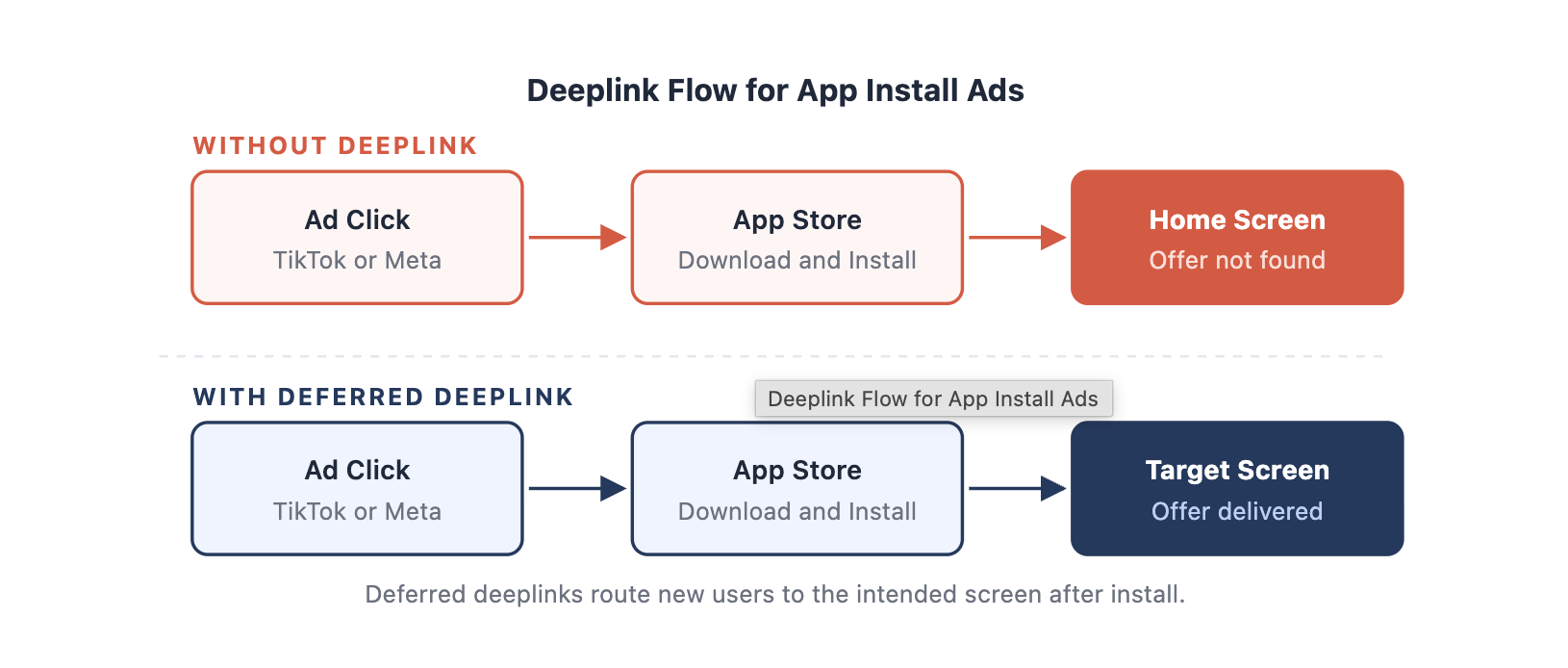
This link type stores the destination information, redirects new users to the app store if the app is not present, and then delivers them to the correct screen after installation. This is the setup required for app install ad campaigns targeting new users.
The distinction matters because the platform behavior differs. If you attach a standard direct link to a user acquisition campaign and the user does not have the app, they go to the app store, install, and land on the home screen. The routing data is lost.
How to Set Up Deeplinks for Meta App Install Ads
Meta's linking system uses Meta App Links, which is metadata embedded in your ad that instructs the platform where to route users after they tap it and install your app.
1. Enable the Facebook SDK and Advertiser ID Collection
Before touching Ads Manager, two technical conditions must be in place.
Install and initialize the Facebook SDK in your iOS or Android app. The SDK handles deferred link resolution: it reads the App Links metadata stored from the ad click and passes the destination to the app after install. Without the SDK, the platform has no mechanism to deliver routing instructions post-install.
Enable Advertiser ID collection in your iOS app settings. On iOS, this is required for deferred linking to function. Without the advertising identifier, Meta cannot match the install event back to the original ad click.
On Android, the setup is more straightforward. Android's App Links standard handles routing natively once the SDK is initialized.
2. Add Your Deeplink URL in Meta Ads Manager
Once prerequisites are met, the in-platform steps take a few minutes:
-
Open Meta Ads Manager and navigate to your ad creative settings.
-
Under Text & Links, locate the Deep Link field.
-
Paste your destination URL. This can be a Universal Link (
https://yourdomain.com/offer) or a custom URI scheme (yourapp://offer). Universal Links are preferred on iOS. -
Meta automatically converts this into App Links metadata and embeds it in the ad.
-
Add a Fallback URL (an app store listing or mobile web page) for cases where routing cannot resolve.
When a user taps the ad and opens the app for the first time, Meta reads the stored metadata and routes them to the destination you specified.
3. Configure AEM for iOS Deeplink Signal Accuracy
For iOS campaigns, confirm that your destination URL is included in your Aggregated Event Measurement (AEM) configuration. Without AEM set up correctly, Meta's privacy framework may block the event signal and cause the deferred routing to fail silently on iOS 14.5+ devices.
For Advantage+ App Campaigns (AAC), Meta manages placement and delivery automatically. You can still pass destination URLs through the ad creative settings under the same Text & Links section.
Want to see how Deeplinks for TikTok and Meta app install ads works with your data?
Get hands-on with Airbridge and see real results.
Try It Free →How to Set Up Deeplinks for TikTok App Install Ads
TikTok's linking system operates by campaign type, and the iOS restriction is where most marketers run into problems before a campaign goes live.
1. TikTok's iOS 14.5+ Deeplink Restriction Explained
TikTok's deferred deeplinks are not supported on iOS 14.5+ dedicated campaigns. These are campaigns that use Apple's SKAdNetwork (SKAN) framework for attribution. If your iOS campaigns run with the iOS 14.5+ dedicated toggle enabled, this feature will not work.
Deferred linking on TikTok is supported for:
-
Android campaigns (all eligible objectives)
-
iOS 14 or lower dedicated campaigns (App Installs, App Event Optimization, Value-Based Optimization)
Standard direct links are supported on iOS 14.5+ campaigns for the Traffic objective on a cost-per-click basis only.
Note: TikTok's deferred linking feature remains in Beta and requires activation approval from your TikTok account representative.
2. Full Deeplink Setup for Android and iOS 14 or Lower Campaigns
For eligible campaigns, the in-platform steps are:
-
In TikTok Ads Manager, open your App Promotion or App Installs campaign.
-
In ad group settings, locate the Destination URL field.
-
Paste your destination URL.
-
Add a Fallback URL: TikTok generates an error if this field is empty.
-
Test the link using TikTok's built-in link validator before the campaign goes live.
3. TikTok Deeplink URL Formats Compared
TikTok supports three formats (TikTok Business Help Center):
| Format | Example | Recommended? |
|---|---|---|
| Apple Universal Links | https://yourdomain.com/offer | Yes, preferred for iOS |
| Android App Links | https://yourdomain.com/offer | Yes, preferred for Android |
| Custom URI scheme | yourapp://offer | Use as fallback only |
Universal Links and App Links are the recommended formats. Custom URI scheme links open the correct screen on an installed app, but have no built-in fallback. If the app is not present, scheme links produce a broken redirect with no recovery path.
Note: Universal Links and App Links are link formats. Deferred linking is a behavior. The two work together when your SDK (Facebook SDK for Meta, TikTok SDK for TikTok) handles destination routing post-install. Choosing a Universal Link format does not automatically enable deferred routing behavior.
4 Common Deeplink Setup Mistakes That Hurt App Install Campaign ROAS
Technical setup is only the first half of the problem. These are the errors that break campaigns after configuration is complete.
No fallback URL. Both TikTok and Meta require a fallback destination in case routing cannot resolve. Without one, users on older OS versions, unsupported devices, or misconfigured SDK installations hit a dead end. Set the fallback to your app store listing or a relevant mobile landing page.
Scheme-only links on iOS. Custom URI scheme links (yourapp://) are fragile on iOS. They have no built-in fallback, and some browsers block them. Universal Links are the correct primary format for iOS campaigns. Scheme links are acceptable as a secondary format or as the fallback itself.
Skipping end-to-end testing. Platform link validators only check URL format, not actual routing behavior. Test on a physical device with the app uninstalled, on both iOS and Android, and verify that routing works correctly after a fresh install. On iOS 14.5+, ATT-related signal loss can reduce deferred link match accuracy on certain SDK setups, which makes real-device testing more important than on Android.
Using deferred routing on TikTok iOS 14.5+ campaigns. This is TikTok-specific and frequently missed. Adding a deferred linking URL to an iOS 14.5+ dedicated campaign either gets ignored or triggers an error at launch. If you need this routing feature on iOS, restructure into iOS 14 or lower campaigns. SKAN campaigns default to home-screen routing by design.
If your iOS audience is primarily on iOS 14.5+ (which most iOS users are as of 2026), consider these alternatives: use the Traffic objective with direct links on a cost-per-click basis, deploy a mobile web landing page with a smart banner that routes users to the right in-app screen after install, or focus onboarding optimization on cold-start users and accept that SKAN campaigns land on the home screen.
Final Step: Test Your Deeplink Setup Before Launch
Getting the routing right solves the core problem. Users land where the ad promised. Day 0 intent stays intact.
Testing is the step most teams skip. Run each campaign destination URL on a real device with the app uninstalled, verify routing on both iOS and Android, and check first-session screen data in your analytics. Catching a misconfigured setup before launch costs nothing. Discovering it after a campaign has been running for a week costs real budget.
Once routing is confirmed, the next layer to optimize is the landing screen itself: how quickly value is communicated, and how the trial or paywall offer is presented on arrival.

Ready to transform your mobile growth?
Learn how Airbridge helps leading brands measure and optimize every touchpoint.