Push Notification Deep Links: Fix the Wrong Screen Problem and Recover CTR

Your push notification gets tapped. The user lands on your home screen instead of the promoted content. They close the app.
That single failed link costs more than one missed click. Users who land on the wrong screen learn to distrust your pushes. CTR drops over time, opt-out rates rise, and your highest-intent lifecycle channel slowly degrades. The problem is rarely the copy or the timing. It is where users end up after they tap.
Key Takeaways
-
Most push notification CTR problems are deep link problems. The message gets tapped. The destination breaks. Fix the link before you rewrite the copy.
-
Three deep link types exist, each with different failure modes. URI schemes, Universal Links (iOS), and App Links (Android) break in different ways and require different fixes.
-
iOS cold-start is the most common cause of home-screen landings. When your app is fully closed, the system may not pass the deep link URL to your handler before the navigation stack loads.
-
Android 12 changed how unverified links behave. Links that worked on older Android may now open the browser with no error message and no obvious cause.
-
Fixing the destination is only half the job. Knowing which push campaigns actually drive subscriptions, not just taps, tells you whether your lifecycle channel is working.
Why Broken Deep Links Silently Kill Push Notification CTR
A push notification deep link is the URL or routing instruction embedded in a notification that sends the user to a specific screen inside your app on tap. When it breaks, the result is a push notification not opening the correct app screen. That is the root cause behind falling CTR.
1. The 3-Second Moment You Are Losing to a Home Screen
A push notification has one job: move the user from a notification to a specific piece of content inside the app.
The message, timing, and personalization all build intent. The deep link converts that intent into action. When the deep link fails, you spend the entire cost of building intent for zero conversion:
-
The user taps the notification
-
The app opens to the home screen instead of the target content
-
The user has no context for what they were supposed to do
-
They exit without converting
After this happens two or three times, they stop opening your pushes entirely.
2. What Falling Push Notification CTR Actually Means
Push notification CTR varies widely by category. According to Pushwoosh's 2025 Benchmark Study (600+ apps, Q4 2024 to Q2 2025):
| App Category | iOS CTR | Android CTR |
|---|---|---|
| E-commerce & Retail | 3.05% | 3.78% |
| Fintech | 2.09% | 2.84% |
| Media & Entertainment | 0.83% | 1.69% |
| Hypercasual Games | 0.82% | 1.05% |
| Action Games | 0.46% | 0.82% |
The spread between the best and worst-performing categories is more than 8x. The gap is not primarily explained by message quality. One consistent separator is reliable deep link destinations. Users quickly learn whether your notifications lead somewhere useful. When they do not, they stop tapping.
3. The Revenue Cost of Every Wrong-Screen Landing
In a subscription app, push notifications serve two specific jobs:
-
Moving free users toward conversion (trial-end reminders, upgrade prompts, feature reveals). Sending conversion-oriented pushes right after users exit without converting is among the highest-ROI lifecycle moments for subscription apps (48 Laws of Subscription App Success, Law 36)
-
Keeping subscribers engaged enough to renew (content updates, progress nudges, win-back triggers)
Both depend on landing users in the right context at the right moment. A "trial ends in 24 hours" push that drops users on the home screen means they never see the renewal offer. These missed moments compound over weeks into higher churn and lower trial-to-paid conversion.
The Three Types of Push Notification Deep Links Explained
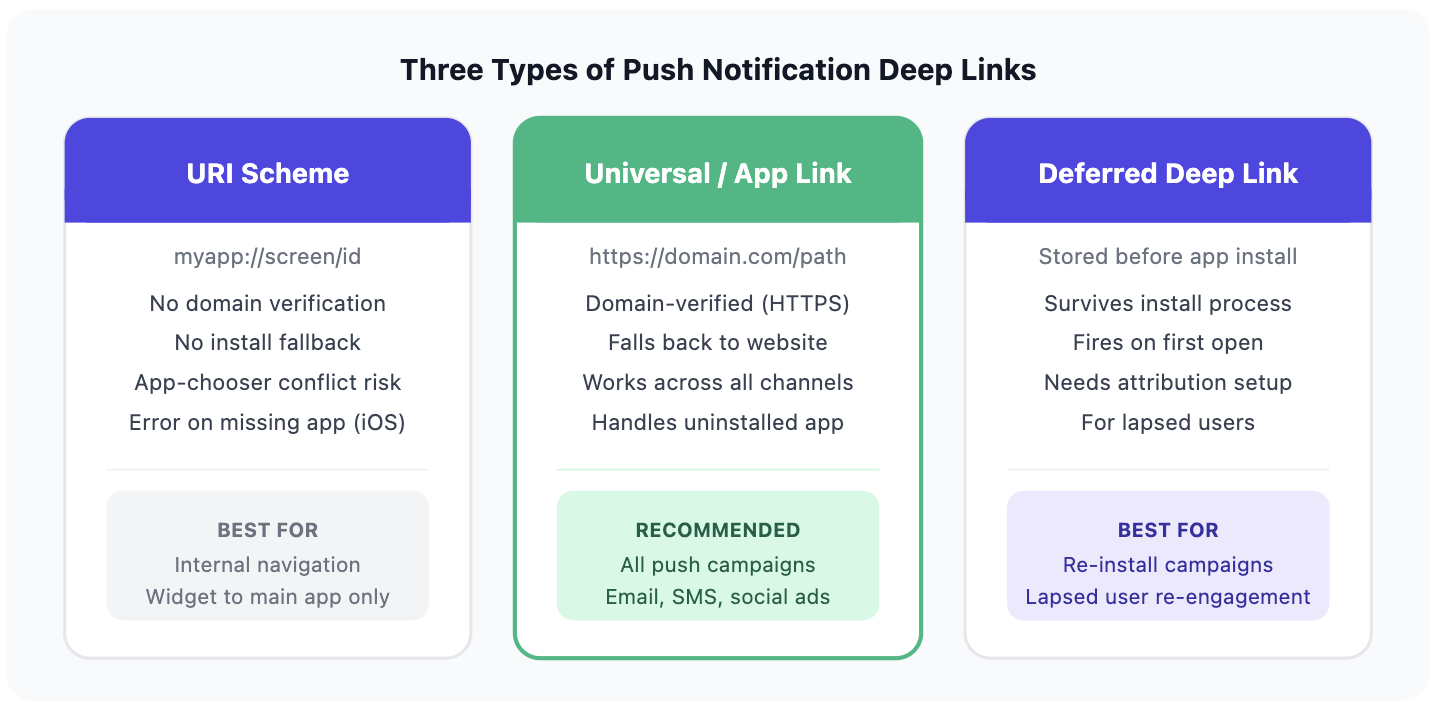
Not all deep links work the same way. The type your app uses determines which failure modes are possible and which fix applies.
For a complete technical breakdown of each type at the URL routing level, Airbridge's deep link guide covers URI schemes, Universal Links, and App Links in detail.
1. URI Schemes (Quick to Build, Not for Production)
A URI scheme looks like myapp://screen/product-id.
Properties:
-
Simple to configure, requires no domain verification
-
Any app can register the same scheme (no ownership protection)
-
Produces an error dialog on iOS if the app is not installed
-
May trigger an ambiguous app-chooser on Android if another app shares the scheme
When to use it: Internal navigation only (widget to main app, app-to-app routing). URI schemes are not suitable for production push notification campaigns.
2. Universal Links for iOS and App Links for Android (The Right Choice)
Both use verified HTTPS URLs, for example https://myapp.com/offers/summer-sale.
Properties:
-
Domain ownership is verified by the OS before routing
-
Opens the app directly if installed
-
Falls back gracefully to your website if the app is not installed
-
Works consistently across email, SMS, social, and push notifications
-
Secure: only your app can claim links tied to your verified domain
When to use it: Every live app running push notification campaigns should use Universal Links or App Links.
3. Deferred Deep Links (For Re-engagement After Reinstall)
A deferred deep link stores the intended destination before an install happens.
Properties:
-
User taps a campaign link, installs the app, lands on the correct screen on first open
-
Survives the install process without losing context
-
Requires attribution infrastructure to store and replay the destination
-
Used for re-engagement campaigns targeting lapsed users who may have deleted the app
When to use it: Re-install campaigns where you need to restore context for returning users.
Why Push Notifications Keep Opening the Wrong Screen
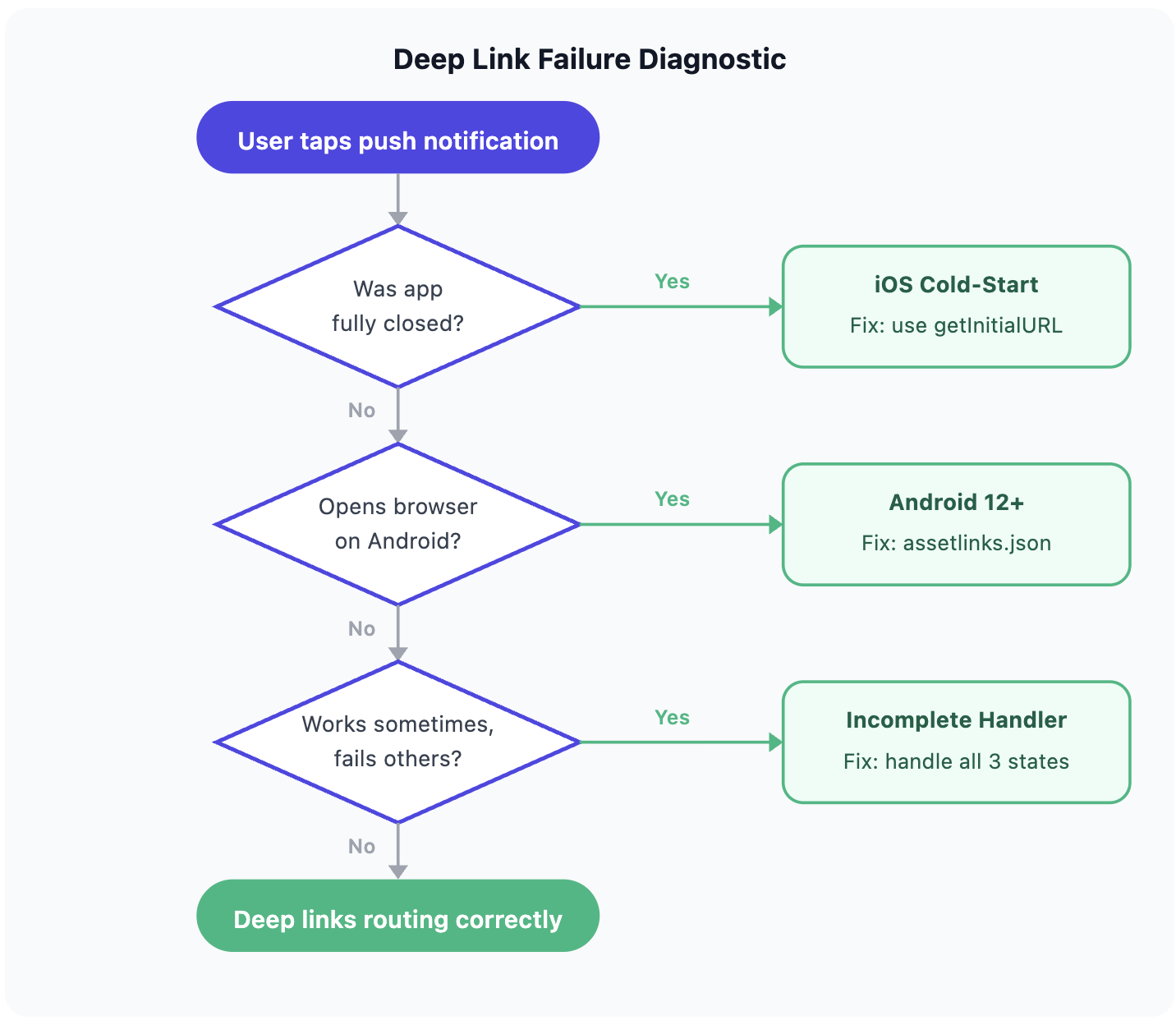
Three root causes account for the vast majority of deep link routing failures. Identifying which one applies to your app determines which fix to apply first.
| Root Cause | Platform | Symptom | Fix |
|---|---|---|---|
| Cold-start routing | iOS | Home screen on closed app | Handle getInitialURL before navigator loads |
| Unverified App Link | Android 12+ | Link opens browser | Add and verify assetlinks.json |
| Incomplete state handling | iOS + Android | Works sometimes, fails others | Code handlers for all 3 app states |
| URI scheme conflict | Both | Wrong app opens | Migrate to Universal Links / App Links |
1. The iOS Cold-Start Deep Link Bug
What happens:
When a user taps a push notification on a fully closed iOS app, the app launches from scratch. The navigation stack has not initialized yet when the deep link URL arrives. If your handler fires before the navigator is ready, the call is lost and the app lands on its default screen.
The fix:
Queue the deep link URL on receipt and process it only after your navigation stack is ready:
-
React Native: Configure
Linking.getInitialURL()to capture the deep link URL on cold start. -
React Navigation: Set up
linking.getInitialURLinNavigationContainer'slinkingprop to return the notification URL before the navigator renders (React Navigation, NavigationContainer documentation).
For native iOS, implement UNUserNotificationCenterDelegate.userNotificationCenter(_:didReceive:withCompletionHandler:) as the primary handler. For cold-start specifically (where the delegate may not fire before app launch completes), also check launchOptions[UIApplicationLaunchOptionsRemoteNotificationKey] in application(_:didFinishLaunchingWithOptions:) to capture the payload before any view controller loads.
2. Android 12 App Link Verification: What Changed
What happened:
Starting with Android 12, Google changed how unverified HTTPS links behave. A link without a verified App Link configuration now always opens in the user's default browser instead of the app (Android Developer Documentation).
How to check if this is your issue:
Run this on a connected device:
adb shell pm get-app-links --user cur com.yourpackage
If the verification status shows none or legacy_failure, App Link verification is the cause.
The fix:
-
Add
android:autoVerify="true"to the intent filter inAndroidManifest.xml -
Host
assetlinks.jsonathttps://yourdomain.com/.well-known/assetlinks.json -
Register your app's package name and SHA-256 signing certificate in the file
3. Notification Handlers That Only Cover One App State
The problem:
Both iOS and Android require explicit code to intercept a push tap and route to a specific screen. The push payload carries a URL or custom data field. Your handler must read it, parse the destination, and trigger navigation.
The three app states you must handle:
-
Foreground: App is open and active when the notification arrives, user taps the banner
-
Background: App is in memory but not active, user taps from the lock screen or notification center
-
Cold start: App was fully closed, tap launches the app from scratch
Most home-screen landing complaints come from cold-start taps. The app opens, the default screen renders, and the navigation intent from the push is never processed because the handler only covers foreground or background states.
One distinction saves debugging time: a push tap always comes from a user who has the app installed, so a home-screen landing after a push is a configuration problem in your handler. A home-screen landing after a paid ad click and a fresh install is a different problem, a missing deferred deep link. That case is covered in how deep linking fixes the click-to-install conversion gap.
Want to see how Push notification deep links works with your data?
Get hands-on with Airbridge and see real results.
Try It Free →How to Fix Push Notification Deep Links: A 5-Step Guide
Step 1: Move Away from URI Schemes
If your app uses myapp:// URI schemes for push campaigns, migrate first before fixing anything else.
URI schemes were never designed for production marketing use. The failure modes (no fallback on missing app, no domain verification, browser errors on iOS) will keep breaking campaigns regardless of how well the rest of your setup is configured.
What to do:
-
Audit every push template for
scheme://links -
Replace with HTTPS Universal Links (iOS) or App Links (Android)
-
Update your push notification tool or CMS to use the new URL format
Step 2: Set Up Domain Verification Files
For iOS (Universal Links):
-
Enable Associated Domains in your app target settings
-
Add
applinks:yourdomain.comto your entitlements file -
Host an AASA file at
https://yourdomain.com/.well-known/apple-app-site-association -
Serve it as
Content-Type: application/jsonwith no redirect on that path (Apple Developer Documentation)
Note: Apple's CDN caches the AASA file aggressively. After deploying changes, allow up to 24 hours before testing on a new device. If testing repeatedly on the same device, clear the iCloud / Apple ID cache between tests.
For Android (App Links):
-
Add
android:autoVerify="true"to your intent filter inAndroidManifest.xml -
Host
assetlinks.jsonathttps://yourdomain.com/.well-known/assetlinks.json -
Include your app's package name and SHA-256 signing certificate in the file
Note: Android 15+ verifies App Links periodically in the background. After deploying changes, allow up to 7 days for full re-verification across devices in the field.
Step 3: Write Handlers for All Three App States
Your notification handler needs three separate code paths, one for each app state.
Foreground (app is open):
Navigate immediately when the tap event fires. Most frameworks provide a direct listener for this state.
Background (app is in memory, not active):
Check for a pending notification intent on app resume. The payload is typically available in the intent or notification object when the app comes to the foreground.
Cold start (app was fully closed):
For React Native, use Linking.getInitialURL() to capture the deep link URL before any screen renders. For React Navigation, configure linking.getInitialURL in NavigationContainer's linking prop to return the notification URL on launch.
For native iOS, implement UNUserNotificationCenterDelegate.userNotificationCenter(_:didReceive:withCompletionHandler:) as the primary handler. For cold-start specifically, also check launchOptions[UIApplicationLaunchOptionsRemoteNotificationKey] in application(_:didFinishLaunchingWithOptions:) to capture the payload before any view controller loads.
Step 4: Test on a Physical Device Before Every Campaign
Universal Links and App Links do not behave reliably in simulators or emulators. Domain verification is a system-level OS check. Simulators bypass it.
Pre-campaign device checklist (run on real iOS and Android):
-
Kill the app completely from the task switcher
-
Tap the push notification
-
Confirm the correct screen loads (cold-start test)
-
Re-open the notification while the app is backgrounded
-
Confirm the correct screen loads (background test)
Step 5: Add Fallback Logic for Expired or Removed Destinations
Your handler should never strand a user with a blank or error screen. Destinations expire and content gets removed.
Build a fallback hierarchy:
-
Check if the target screen exists
-
If not, try the nearest parent screen (e.g., the product category if the product was removed)
-
If that fails, route to a relevant section (search, home tab, or a related content screen)
A user who lands on a blank state from a push notification associates that experience with your notifications as a whole. A graceful fallback preserves trust even when the specific content is no longer available.
How to Confirm Your Push Deep Link Fix Is Working
1. Track Click-to-Screen Rate Separately from CTR
CTR measures whether users tap your notification. Click-to-screen rate measures whether users actually reach the intended destination.
The gap between these two numbers is your deep link failure rate.
A campaign can show a 4% CTR alongside a 2% destination-reach rate, meaning half of every user who tapped never saw the content you promoted. You will never catch this by watching CTR alone.
How to instrument it:
-
Fire a screen-load event for the target screen within 5 seconds of a notification tap
-
Compare the destination-screen event rate to the notification-tap event rate
-
A ratio below 0.85 indicates a routing failure somewhere in the stack
2. Run a Quick Destination Audit Before Each Campaign
Deep links break silently after routine code changes. Common causes:
-
A navigation route is renamed in a product update
-
A content ID or product slug changes
-
A promotional screen is removed after its campaign ends
Pre-campaign audit (takes 2 minutes):
-
Copy the deep link URL from your push template
-
Open a browser on your device and navigate to the URL
-
Confirm the correct app screen loads
-
Repeat on both iOS and Android
3. Connect Push Taps to Subscription Revenue
Once your deep links reliably route to the right screen, the next question is whether those screens convert.
A push notification that moves a free user to a trial-end screen, feature gate, or renewal prompt is part of your subscription funnel. Knowing which of those pushes resulted in an actual trial start or subscription renewal, not just a tap, tells you which lifecycle moments your push channel is winning.
Every push tap that converts to a subscription renewal contributes to subscriber lifetime value (LTV). Knowing which pushes are moving that metric separates a lifecycle channel that pays from one that just fills notification slots.
If you are running paid campaigns alongside lifecycle push and want to see which source drives paying subscribers, Airbridge Core Plan connects ad spend, push engagement, and subscription events in one view. It tracks the install-to-trial-to-subscription funnel across paid channels and lifecycle triggers, so you can see whether your push re-engagement or your paid retargeting is driving renewals.
Frequently Asked Questions
Why does my push notification open the app but land on the home screen?
In most cases the app was fully closed, and the deep link URL arrived before the navigation stack was ready, so the handler dropped it. Capture the initial URL on cold start and process it after navigation is initialized. On Android 12 and later, also confirm App Link verification, since unverified HTTPS links open the browser instead.
Is a home-screen landing after a push a configuration problem or a missing capability?
For push notifications it is a configuration problem. The user already has the app installed, so the fix is in your notification handler and link verification. Missing capability applies to paid ad links that lead to a fresh install, where Universal Links and App Links cannot carry the destination through the app store and deep linking">deferred deep linking is required.
Do push notifications need deferred deep links?
Only for win-back campaigns that reach users who deleted the app. For everyone else the app is installed, so Universal Links on iOS and App Links on Android, with handlers for the foreground, background, and cold-start states, are enough.
Fix the Link First, Then Optimize the Message
A push notification is one of the highest-intent moments in your user's relationship with your app. A user who opted in, read your message, and tapped was ready to act. A broken deep link is the only thing standing between that intent and a conversion.
Fix the destination before you rewrite the copy. Test on a physical device before every campaign goes live. Instrument click-to-screen rate so you know your fix holds after every code update.
Ready to transform your mobile growth?
Learn how Airbridge helps leading brands measure and optimize every touchpoint.