Android App Links Not Verifying? The Complete assetlinks.json Setup Guide

You followed Google's documentation step by step. You uploaded the file. You added android:autoVerify="true" to your manifest. But when you tap a link on the test device, it still opens in the browser instead of your app.
This is the most common Android App Links failure pattern, and the root cause is almost never what developers expect. Android App Links are a class of deep link that open directly inside your app once a domain association is properly established through a Digital Asset Links file. If that verification fails, Android shows no error. The link silently opens in the default browser.
This guide covers how to verify Android App Links with your assetlinks.json file and fix the five issues responsible for most failed setups.
Key Takeaways
-
The SHA256 fingerprint mismatch is the #1 failure cause. If you use Play App Signing, Google re-signs your APK with a different key. Your local keystore fingerprint will not match, and verification fails silently.
-
Your assetlinks.json must return HTTP 200 with Content-Type: application/json. Any redirect (301 or 302) breaks Android's verification crawler, even if your browser handles it fine.
-
Android 12 removed the fallback chooser dialog. Before Android 12, an unverified app link showed a chooser. On Android 12 and later, it opens directly in the browser with no indication that verification failed.
-
robots.txt can silently block Android's domain verification crawler. If your
/.well-known/path is disallowed, verification fails with no visible error. -
ADB commands let you test verification without waiting for real users. Run
adb shell pm get-app-linksto see the exact verification state for each declared domain.
How Android App Links Verification Works (And Why It Fails Silently)
Android App Links open directly inside your app with no chooser dialog, once the domain and app are properly associated via a Digital Asset Links file hosted on your server. This is different from regular deep links, which can still trigger the "Open with" chooser on unverified setups.
When a link click cannot be verified, Android shows no error. The link silently opens in the default browser. This is by design, but it makes debugging difficult.
What Happens During the Verification Process
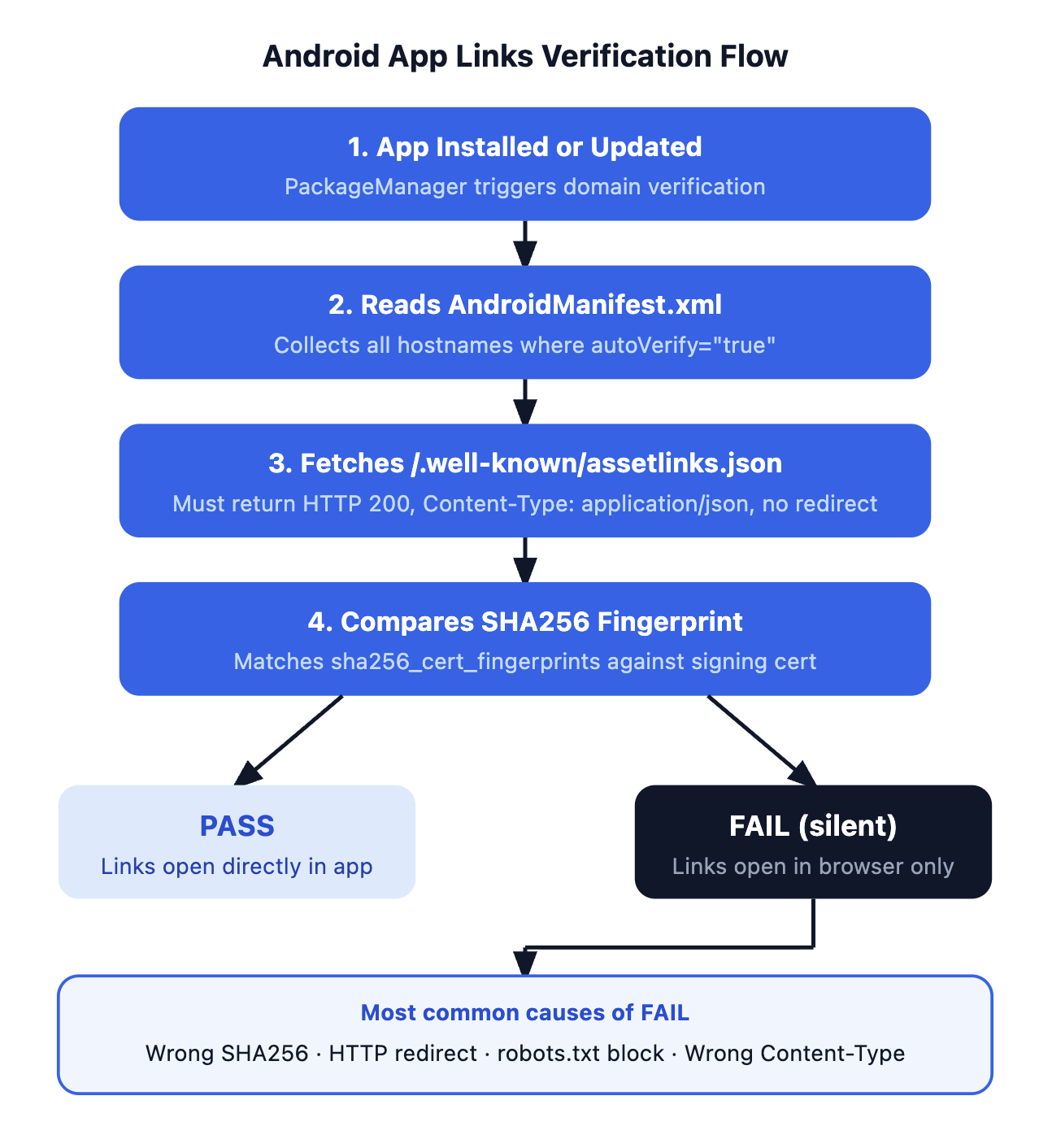
According to the official Android App Links documentation, the verification sequence works as follows:
-
App installs or updates on the device.
-
Android reads your
AndroidManifest.xmland collects every hostname declared in intent filters whereandroid:autoVerify="true"is set. -
Android fetches
https://[your-domain]/.well-known/assetlinks.jsonfor each hostname. -
Android compares the
sha256_cert_fingerprintsvalue in the file against your app's signing certificate. -
If they match, the domain is marked as verified and links to that domain open directly in your app.
-
If they don't match, or if the file cannot be fetched, the domain remains unverified.
Android waits up to 20 seconds after install for this asynchronous process to complete. If anything fails during that window, there is no user-facing error.
What Changed in Android 12 That Makes Failures Invisible
Before Android 12, an unverified intent filter still triggered a chooser dialog, letting users pick between the browser and your app. That dialog was a visible signal that something was misconfigured.
Starting with Android 12 (API level 31), the behavior changed:
-
Unverified App Links open directly in the default browser, with no chooser.
-
There is no user-facing indication that your app was a candidate to handle the link.
-
A broken setup on Android 12+ is completely invisible unless you use ADB to check the verification state.
This also means a setup that appeared to work fine on Android 11 can silently break on Android 12 without any code change on your side.
Step 1: How to Create and Host Your assetlinks.json File
The Digital Asset Links file is a JSON array that tells Android which apps are authorized to handle links for your domain. It must be hosted at a specific path on your web server with specific server settings.
What the assetlinks.json File Should Contain
Every field in this structure is required. Missing or misspelling any key causes verification to fail:
[
  {
    "relation": ["delegate_permission/common.handle_all_urls"],
    "target": {
      "namespace": "android_app",
      "package_name": "com.yourcompany.yourapp",
      "sha256_cert_fingerprints": [
        "AA:BB:CC:DD:EE:FF:00:11:22:33:44:55:66:77:88:99:AA:BB:CC:DD:EE:FF:00:11:22:33:44:55:66:77:88:99"
      ]
    }
  }
]
Two formatting mistakes that fail silently:
-
Lowercase fingerprint. The SHA256 fingerprint is case-sensitive. It must be UPPERCASE with colons between bytes.
aa:bb:ccwill fail;AA:BB:CCwill pass. -
Wrong relation string. The
relationfield must be exactly["delegate_permission/common.handle_all_urls"]. Any variation breaks verification.
Where to Host assetlinks.json and What Your Server Must Return
The file must be accessible at this exact URL:
https://[your-domain]/.well-known/assetlinks.json
Your server must meet all four of the following requirements, as specified in the Google Digital Asset Links statement documentation:
| Requirement | What It Means | Common Mistake |
|---|---|---|
| HTTPS only | Serve the file over HTTPS, even if your intent filter uses http:// | Serving from HTTP or a mixed scheme |
| HTTP 200 response | Return exactly HTTP 200. Android does not follow 301 or 302 redirects | CDN or server redirects on /.well-known/ |
| Content-Type: application/json | The response header must specify application/json | Server defaults to text/plain for .json files |
| robots.txt allows crawling | The /.well-known/ path must not be blocked | Disallow: / or Disallow: /.well-known/ in robots.txt |
Multiple domains: If your app handles multiple hostnames, you must host a separate assetlinks.json file on each domain. A single file on one domain does not cover other domains.
The diagram below shows how these requirements fit into the full verification flow:
Start measuring what matters — for free
Airbridge Core Plan gives growing teams real attribution, deep linking, and audience tools at no cost.
Start Free for 30 Days →Step 2: How to Get the Correct SHA256 Certificate Fingerprint
The fingerprint mismatch between what is in your assetlinks.json and what is signed on the device is the single most common cause of App Links verification failures. This is almost always caused by Play App Signing.
Why Play App Signing Changes Your SHA256 Fingerprint
Play App Signing is mandatory for all new apps published to the Google Play Store since August 2021. When you enroll, Google holds and manages your app's release signing key, then re-signs your APK with that Google-managed key before delivering it to users.
This means two separate keys exist for your app:
-
Your upload key: The key you use to sign the AAB before uploading to Play Console. Google verifies you are the publisher, then strips this signature.
-
Google's app signing key: The key Google uses to sign the final APK delivered to users' devices.
If you extract a SHA256 fingerprint from your local keystore using keytool and put it in your assetlinks.json, App Links verification will fail for every user who installed the app from the Play Store.
How to Find Your Correct SHA256 Fingerprint in Google Play Console
For apps using Play App Signing (all new apps):
-
Open Google Play Console.
-
Select your app.
-
Go to Release > Setup > App signing.
-
Under "App signing key certificate", copy the SHA-256 certificate fingerprint.
Play Console also shows a pre-formatted assetlinks.json snippet on this page. Using that snippet directly eliminates copy-paste formatting errors.
For legacy apps with self-managed signing:
Run the following command against your release keystore:
keytool -list -v \
  -keystore your-release.keystore \
  -alias your-key-alias
Find the SHA256: line in the output. Format it as uppercase hex bytes separated by colons.
How to Support Multiple Signing Keys in assetlinks.json
If your app is distributed through multiple channels (Play Store, direct APK download, enterprise distribution), include all signing key fingerprints as separate entries in the array:
"sha256_cert_fingerprints": [
  "AA:BB:CC:...(Google Play App Signing key)...",
  "11:22:33:...(your upload key or legacy key)..."
]
Including all keys lets verification succeed regardless of which signing path was used for a given install.
Step 3: How to Configure AndroidManifest.xml and Test Verification
Required AndroidManifest.xml Intent-Filter Configuration
Every domain you want to handle as an App Link requires a properly structured <intent-filter>. Four attributes are required, and missing any one causes Android to skip verification for that domain entirely:
<activity android:name=".MainActivity">
    <intent-filter android:autoVerify="true">
        <action android:name="android.intent.action.VIEW" />
        <category android:name="android.intent.category.DEFAULT" />
        <category android:name="android.intent.category.BROWSABLE" />
        <data
            android:scheme="https"
            android:host="www.yourapp.com" />
    </intent-filter>
</activity>
The four required elements are:
-
android:autoVerify="true"on the<intent-filter>tag (not the<data>tag) -
android.intent.action.VIEW -
android.intent.category.DEFAULT -
android.intent.category.BROWSABLE
Multiple domains and Android version differences:
-
On Android 12 and later, verification is per-domain. A failure on one domain does not affect others. Add
android:autoVerify="true"to each intent filter individually. -
On Android 11 and earlier, if any declared domain fails verification, all domains in the app fail. This makes it especially important that every declared domain has a valid, reachable
assetlinks.jsonfile before publishing.
How to Check Verification Status Using ADB
Use this command with your device connected and the app installed:
adb shell pm get-app-links --user cur com.yourcompany.yourapp
The output lists each declared domain with its current verification state:
-
verified: Domain is verified. Links open directly in your app. -
selected: User manually selected your app for this domain (not auto-verified by the system). -
none: Verification has not run yet, or the state was reset.
To reset and re-trigger verification without reinstalling the app:
# Step 1: Reset the current verification state
adb shell pm set-app-links --package com.yourcompany.yourapp 0 all

# Step 2: Trigger re-verification
adb shell pm verify-app-links --re-verify com.yourcompany.yourapp
Wait at least 20 seconds, then run get-app-links again to check the updated result.
How to Test App Link Routing Directly on a Device
Simulate a link tap to confirm your app opens instead of the browser:
adb shell am start \
  -a android.intent.action.VIEW \
  -c android.intent.category.BROWSABLE \
  -d "https://www.yourapp.com/your-path"
-
If verification succeeded: your app opens directly.
-
If it opens the browser or shows a chooser: verification failed for that domain.
You can also use Google's Statement List Generator and Tester to check whether your assetlinks.json is reachable, valid JSON, and matches your app's package name and fingerprint, without needing a device.
5 Mistakes That Silently Break Android App Links Verification
Most App Links failures share one trait: Android produces no error and the link just opens in the browser. The table below covers the five most common silent failure causes and how to fix each one:
| Mistake | Why It Fails | How to Fix |
|---|---|---|
| Using the local keystore fingerprint with Play App Signing | Google re-signs your APK. The installed cert does not match your local key. | Get the SHA256 from Play Console under Release > Setup > App signing. |
| HTTP redirect on the assetlinks.json URL | Android does not follow 301 or 302 redirects when fetching the file. | Serve the file with a direct HTTP 200. Remove CDN or server-level redirects on /.well-known/. |
| robots.txt blocking /.well-known/ | Android's verification crawler is blocked and cannot fetch the file. | Add Allow: /.well-known/assetlinks.json to your robots.txt, or remove the Disallow rule for that path. |
| Wrong Content-Type header | Android expects Content-Type: application/json. Some servers default to text/plain for .json files. | Configure your web server or CDN to serve .json files with Content-Type: application/json. |
| Lowercase fingerprint in assetlinks.json | The SHA256 comparison is case-sensitive. Lowercase bytes fail verification. | Use uppercase hex characters with colons between bytes, exactly as shown in the Play Console snippet. |
If you manage campaign URLs across multiple domains and find yourself updating assetlinks.json files manually each time a subdomain changes, consider using a deep linking tool that handles asset links file generation automatically.
How to Use Verified App Links in Paid Marketing Campaigns
Once your Android App Links are verified, every https link to your domain opens your app with no browser detour. That matters most in paid acquisition.
Why this affects your conversion numbers:
When a user clicks a paid ad pointing to your domain, a verified App Link sends them directly to the right screen inside your app. Without verification, the user lands in the browser, has to find the app manually, and often abandons the flow entirely. That gap shows up in trial start rates, onboarding completion, and subscription conversion across every campaign.
How deep linking tools use App Links:
If you use a tool to manage campaign URLs and measure which ad drove which install or trial, App Links verification is a prerequisite for any of that routing to work correctly. Airbridge's deep linking product handles the assetlinks.json configuration as part of its SDK setup. Once the domain is registered, the asset links file is maintained automatically, and your marketing team can create campaign links without manually editing the JSON file each time a domain changes.
For teams measuring subscription conversions end-to-end, Airbridge Core Plan connects the ad click to the install, trial, and subscription in one funnel. It supports Meta, Google, Apple Search Ads, and TikTok, with 15K attributed installs free to start.


Ready to see what Core Plan can do?
Free attribution, deep linking, and audience tools — built for teams that are ready to grow.