How Profitable Subscription Apps Set Up Web-to-App Campaigns on Google Ads


Web-to-app feels like all the rage these days, but many marketers conflate two very different strategies that require two distinct set-ups.
In this article, we’ll go step-by-step on how to set up a direct to app store web-to-app campaign on Google with Ashley Black, founder of Candid Consulting and previously at Google App Ads. In the process, we'll be using Airbridge Core Plan, built for subscription apps to accurately attribute your web-to-app installs, trials, and subscriptions.
To clarify the difference between the two commonly referred to 'web-to-app' strategies, here are their definitions:
-
Web-to-App: Driving users from a web-based ad directly to the App Store. No landing page in between. This is what we’ll be digging into in this guide.
-
Web-to-App aka Web Funnels: Driving users from a web-based ad to a web page where users complete funnels/purchases on web. This is popular amongst subscription apps as it can help avoid App Store fees. This guide will not cover this set up as it warrants its own playbook
Why subscription apps use Web-to-App vs. UAC
Apple reshaped app marketing in 2021 with ATT and SKAN, dramatically reducing both performance and measurement visibility. Google felt this especially acutely. Unlike Meta, TikTok, and Snap, whose app campaign inventory is largely in-app, Google’s app network skews more heavily toward web traffic, particularly Search, where it cannot collect IDFAs to deterministically link clicks to conversions. Combined with Google’s delayed ATT prompt rollout on YouTube, its largest app channel, this left Google with fewer deterministic conversion signals and a heavier dependence on modeled conversions. Those modeled conversions may hit your targets within Google’s platform, but when marketers go to view performance on other measurement sources, the numbers rarely look as good.
Another significant limitation of Apple’s SKAdNetwork and AdAttributionKit is the delay in receiving post-install conversion data. Important events such as trial starts and subscription purchases can take days (or longer) to be reported back to ad networks due to “privacy-preserving” timers. These delays reduce the speed and accuracy with which Google can learn from user behavior and optimize campaigns. In contrast, a web-to-app strategy is not constrained by SKAN/AAK reporting delays, allowing conversion signals to be shared more quickly and enabling Google’s algorithm to react and optimize faster.
While Google has made a lot of positive improvements on their iOS app product (see ICM, ODM) some marketers still want the same level of accuracy they had pre-2021; this is where web-to-app comes in. Web-to-App is effectively a hidden redirect enabling Airbridge to collect Google identifiers and marketing-level data (campaign, keyword, ad) and attribute it to specific in-app conversions, like trial starts and subscriptions. This in-app conversion data is then shared back with Google to inform it of the clicks’ effectiveness in driving the intended results.
Though Airbridge makes it easy to enable web-to-app campaigns with Google, it’s important to evaluate whether it’s the right strategy for your app and ensure it’s properly set up from the start.
Is Web-to-App a good fit for my app?
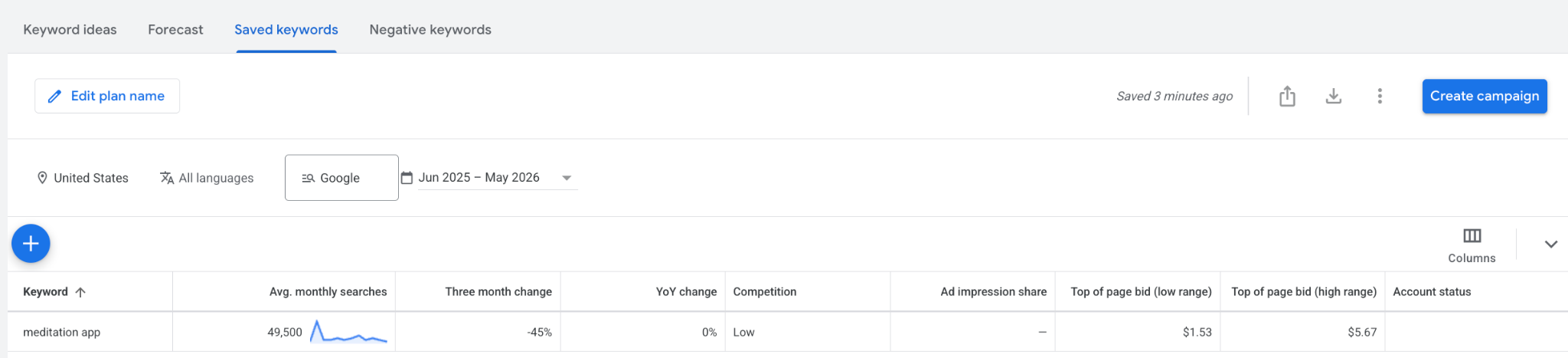
While you can run web-to-app on Google’s Display Network or YouTube, the highest quality users are from Search. However, Search is finite, so you first have to determine whether there is enough volume to be worthwhile. To do that, you can use Google’s internal Keyword Planner to research the search volume for your category.
For example, the search term “meditation app” has ~50K monthly searches in the US. This is a viable number to run a search campaign. Combined keywords under 5K will have a hard time driving enough traffic to sustain a campaign.
Measure every web-to-app install, trial, and subscription
Learn more about Core Plan →How to set-up a Web-to-App Campaign on Google
Setting up a web-to-app campaign requires some back and forth between Airbridge and Google Ads. To help with the flow of that set-up, [AB] will be used to indicate the step is done in Airbridge and [GA] will be used to indicate the step is done in Google Ads.
Steps
-
[AB] Ensure you have Google Ads set up as an “Ad Channel Integration” in Airbridge.
-
[AB] Complete the channel integration and ensure you have added all “In-app Event Postbacks” that you want to send to Google.
-
[AB] Make sure the toggle is on to send these events to Google.

-
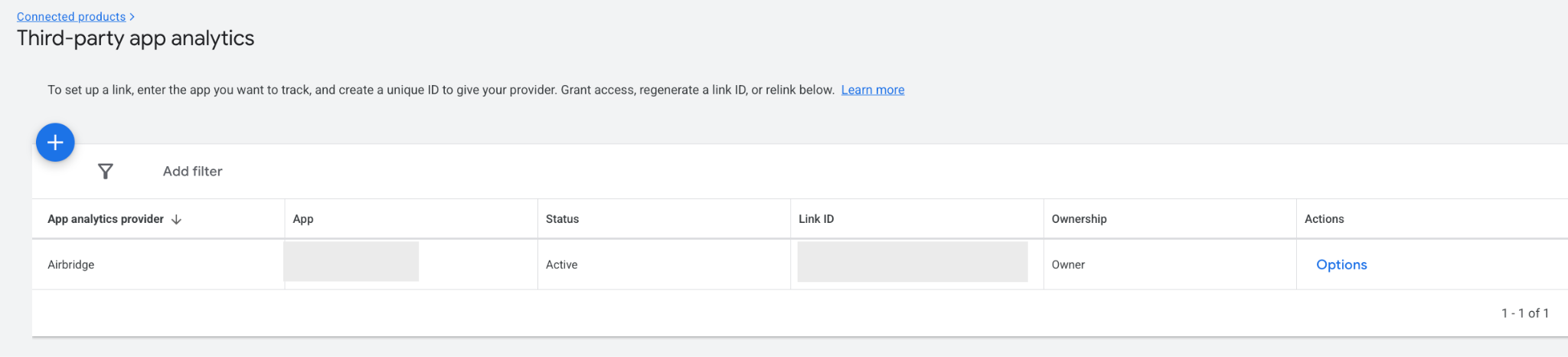
[GA] Link Airbridge to your Google Ads account under “Connected Products”. This automatically imports Airbridge conversions into Google Ads (can take a few hours for any new conversions added).
-
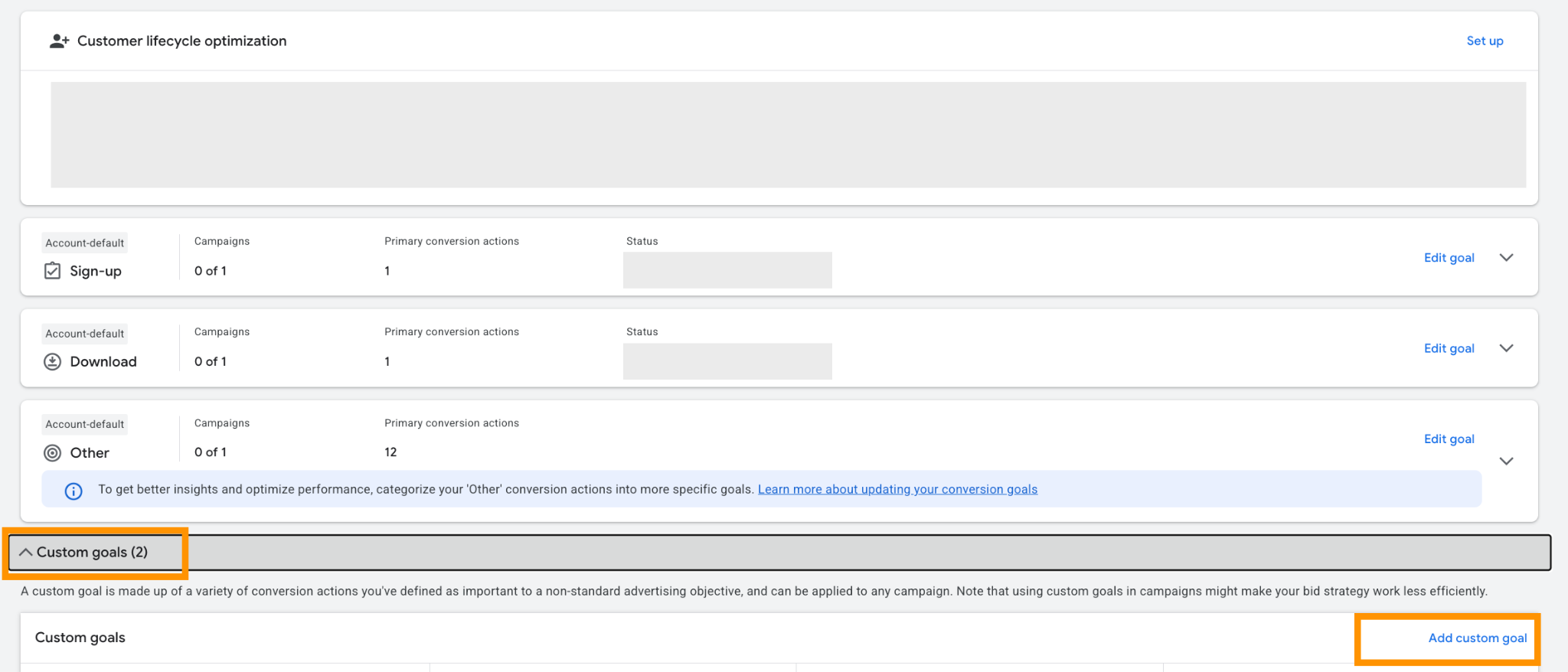
[GA] Navigate to “Goals” and create a “Custom Goal”.
-
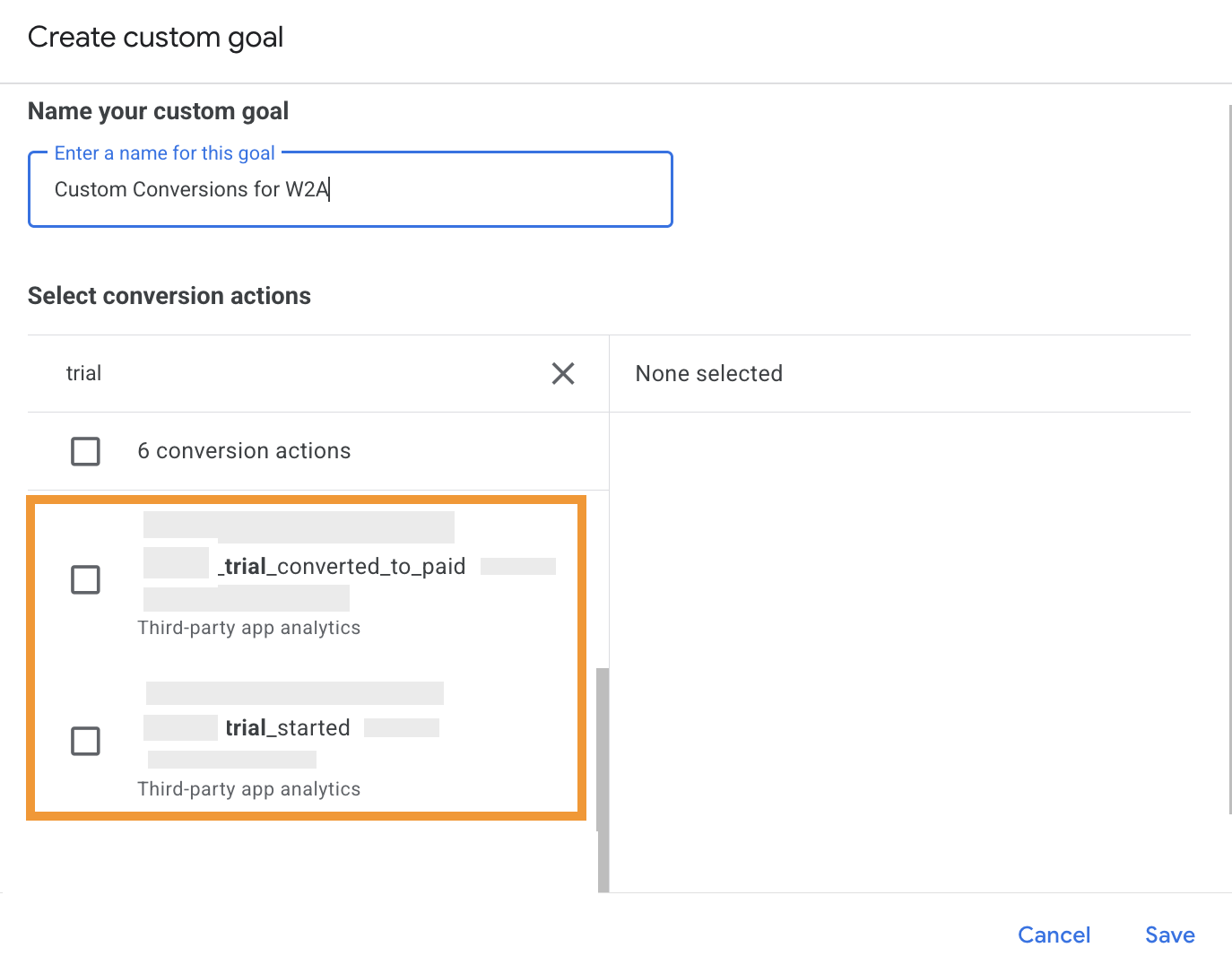
[GA] Select the Airbridge conversions you want to use to optimize your Search campaign.
-
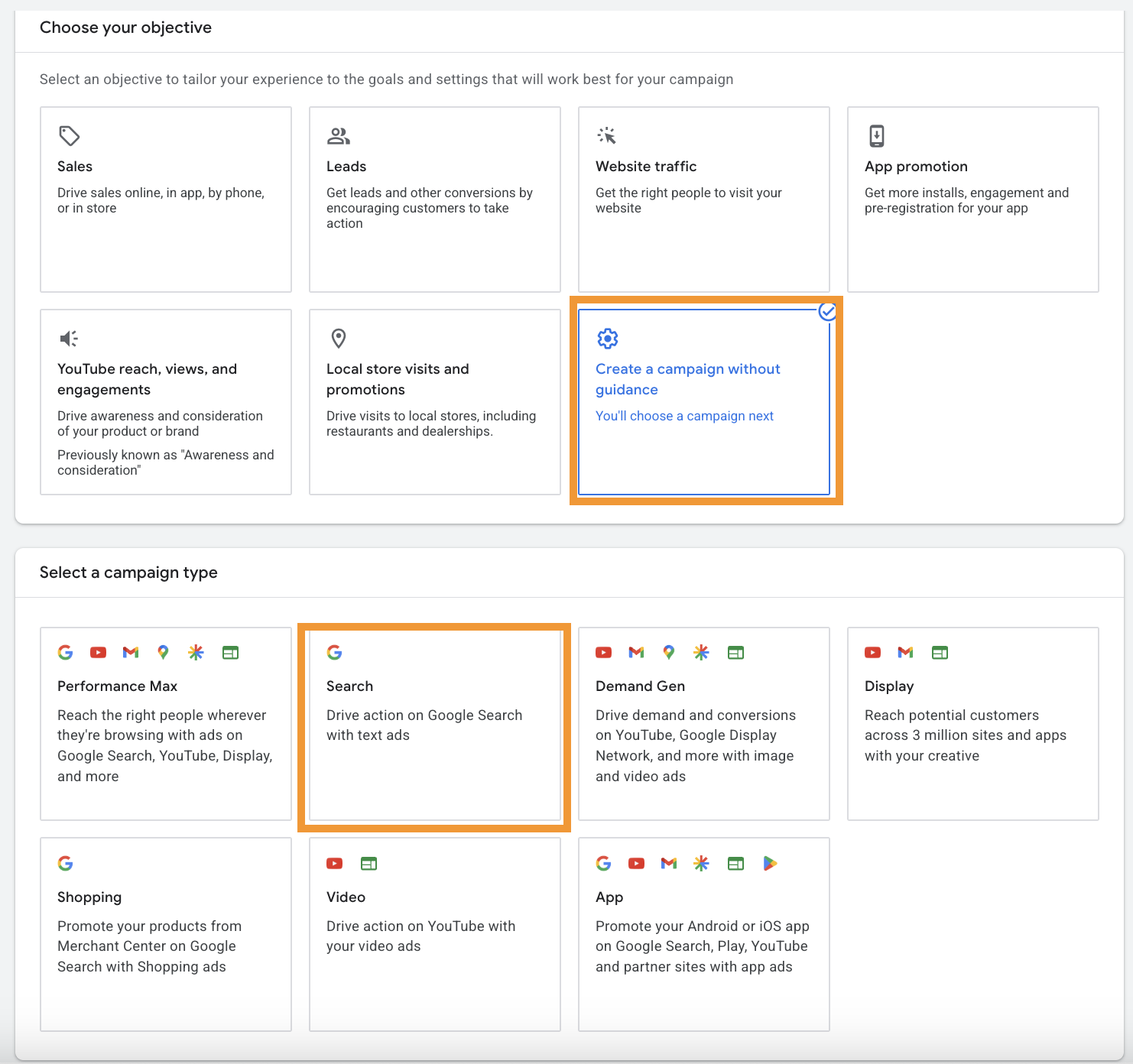
[GA] Create a Google Search campaign by selecting “Create campaign without guidance” and select “Search”
-
[GA] Under “Add Goal”, select the custom goal you created. Proceed without selecting “Website Visits” or “Phone Calls”.
-
[GA] Set up your bid strategy with or without a bid target.
-
[GA] Structure your campaign settings based on preferences.
-
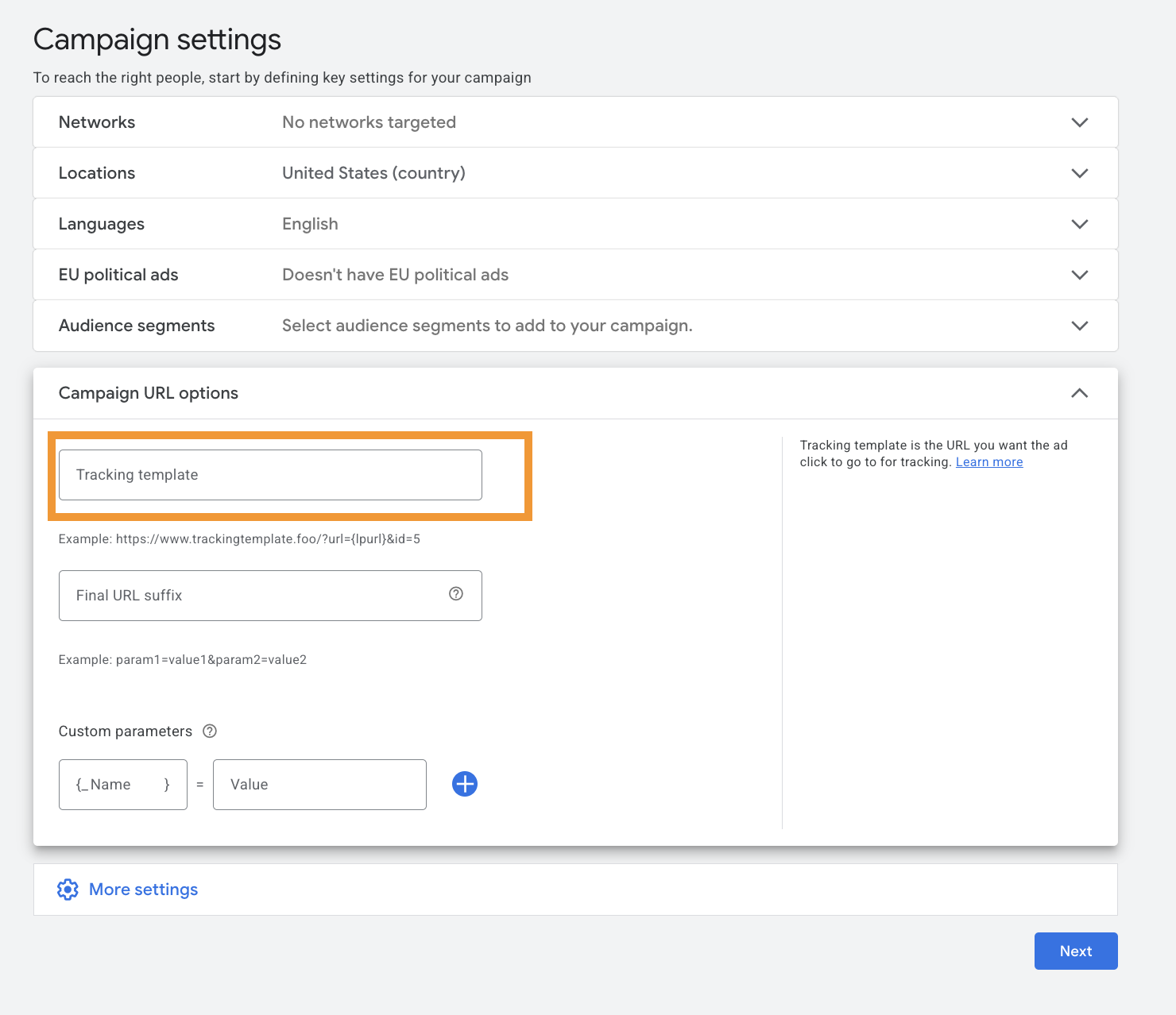
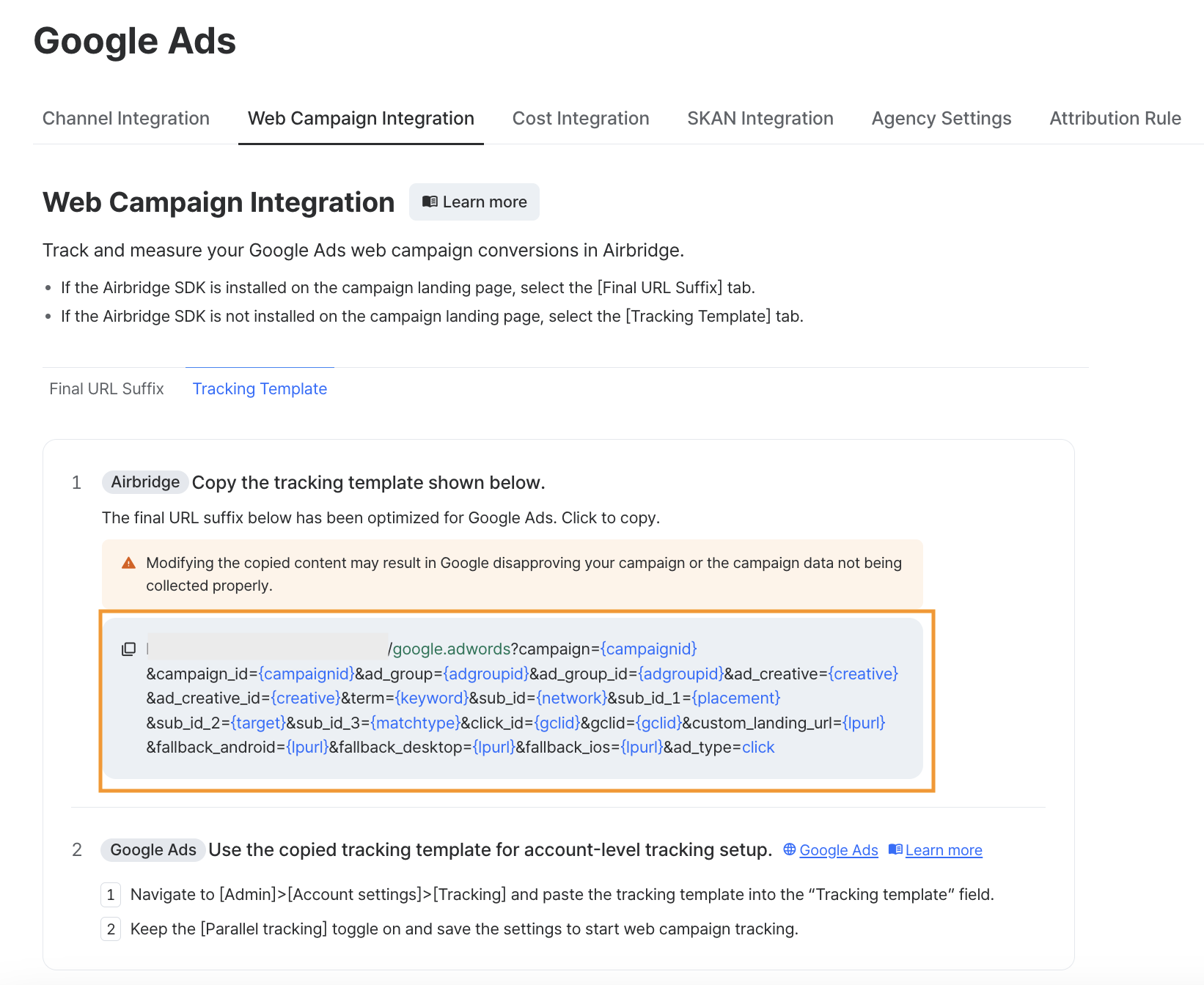
[GA/AB] Within Campaign Settings > Campaign URL Options, copy and paste the Tracking Template from Airbridge under the “Web Campaign Integration” section.
Note: While Airbridge’s documentation says to copy and paste this at the Account Level, those directions are primarily if you are using a landing page to redirect to the store. For this set up, keep it at the campaign level.
-
[GA] Enter Final URL which is your App Store URL.
-
[GA] Complete Search campaign set-up.
-
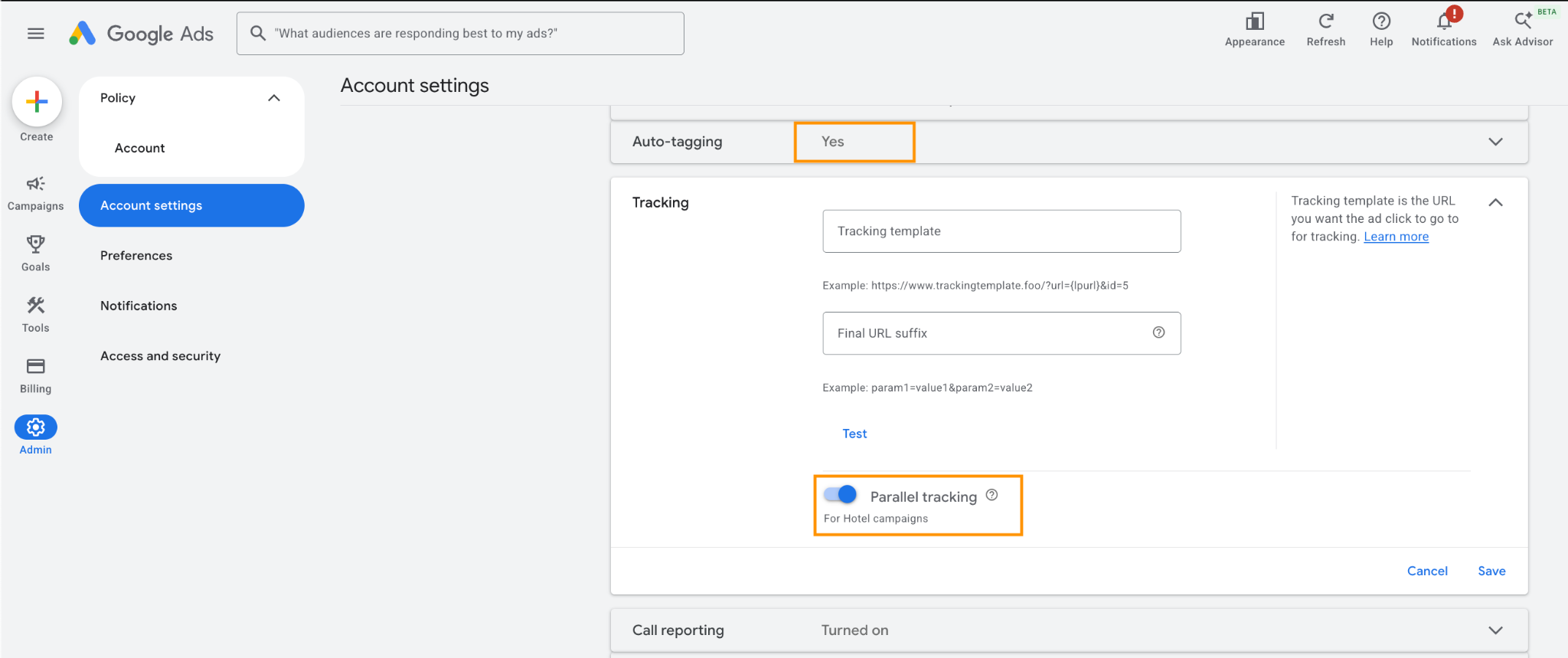
[GA] Turn on Parallel Tracking and Auto-Tagging within Admin > Account Settings.
Best Practices for Search Web-to-App campaign
In a lot of ways, setting up a Search web-to-app campaign is the same as you would if you were running a traditional search campaign to a website. However, there are some features available on this campaign type that won’t translate for a web-to-app campaign.
-
AI Max: While some features of AI Max could work for web-to-app, the dynamic routing to specific webpages makes this feature a bad fit for this strategy.
-
Sitelinks: Traditional sitelinks won’t work as they will direct users away from the App Store listing. However, you can run Custom Product Pages in place of traditional sitelinks.
-
Dynamic Images: These pull from your landing page which may not be the best source of images to be used in a search campaign given the only images available via this set-up are screenshots.
For newly launched Search web-to-app campaigns, here are some best practices:
-
Start broad (literally): Apply keywords with broad and/or phrase match vs. exact. Allow the system to figure out what works and what doesn’t and hone in once you have enough data.
-
Less is more: You don’t need thousands of keywords. Identify what keywords have the highest volume and go from there. With more data, you can add in additional keywords based on search term volume.
-
Apply a target: Initially you can start with max conversions to gather data, but switch to a target bid within 1-2 weeks to help control performance.
-
Disable “networks”: Google will auto-opt in the campaign to Search Network and Display Network. Opt out of those two to start so it doesn’t muddy results.
-
Check location settings: Just like UAC, the default setting targets users who have “Presence or interest in” your targeted location. This may work for physical businesses, but for apps it’s best to keep it just to people who have a “Presence In” your targeted location.
Recap
Running web-to-app campaigns on Google is one of the most effective ways to reach high-intent users while avoiding many of the measurement and attribution challenges associated with iOS acquisition. For subscription apps looking to test this strategy, Airbridge’s Core Plan makes setup simple, reliable, and fast—so you can launch with confidence and trust the data behind your results.
If starting out, be sure to use the promo code: ASHLEY to receive 20% off the Core Plan.