Deferred Deeplink Implementation Guide for iOS & Android

A deferred deeplink should send a brand-new user to a specific in-app screen even when they did not have your app when they tapped the link. The concept is simple, but the implementation is where most teams get stuck: the official docs are split across Apple, Google, your link provider, and your own SDK, and none of them tell you which method to call in what order. If you have been searching how to implement deferred deeplink iOS Android SDK calls and found the docs scattered, this guide puts the pieces in one place.
This walkthrough covers how deferred routing actually works, the exact iOS and Android setup steps, the SDK callbacks you need to handle, the most common mistakes that silently break the flow, and how to test it before you ship. The cost of getting this wrong is concrete: when the August 2025 shutdown of Firebase Dynamic Links forced millions of apps to migrate, the teams that rebuilt their routing correctly kept their post-install conversion intact, and the teams that did not lost every new user to a generic home screen.
Key Takeaways
-
Deferred routing has two distinct halves. A pre-install half that stores the destination, and a post-install half where your SDK reads it back on first launch and routes the user. You must implement both.
-
iOS and Android solve the match problem differently. Both prefer deterministic matching, but Android can fall back to probabilistic matching when the install referrer is missing, while iOS cannot, because Apple banned fingerprinting in iOS 14.5. That missing safety net is why iOS match rates need extra care.
-
The SDK callback is the single most important line of code. On both platforms the link arrives through the same callback as a normal deeplink, fired once on first launch. If you do not register it, the destination is silently dropped.
-
The deferred window expires, often after about an hour. The exact default varies by provider, so users who install and open after it lapses land on your default screen rather than the intended page. Test within the window.
-
Verification is not optional. Universal Links and App Links fail quietly when the domain association file is misconfigured, so you must test real install-from-store flows on physical devices.
What Is a Deferred Deeplink?
A deferred deeplink is a link that routes a user to a specific in-app destination after they install the app, rather than to a generic landing screen. It defers the routing until the app exists on the device.
Compare the three link types so the difference is clear:
| Link type | App already installed? | Where the user lands |
|---|---|---|
| Standard deeplink | Yes | The specific in-app screen, immediately |
| Deferred deeplink | No | The app store, then the specific screen after first launch |
| Regular install link | No | The app store, then the default home screen |
The value is entirely in retention and conversion. A user who taps an ad for a specific product, a referral to a specific friend, or a promo for a specific plan expects to see that exact thing when the app opens. Dropping them on a home screen breaks the promise of the link and is one of the most common silent leaks in early-stage paid acquisition.
How Deferred Routing Works: The End-to-End Flow
Before touching code, you need a mental model of the full round trip. Every implementation, regardless of provider, follows the same five steps.
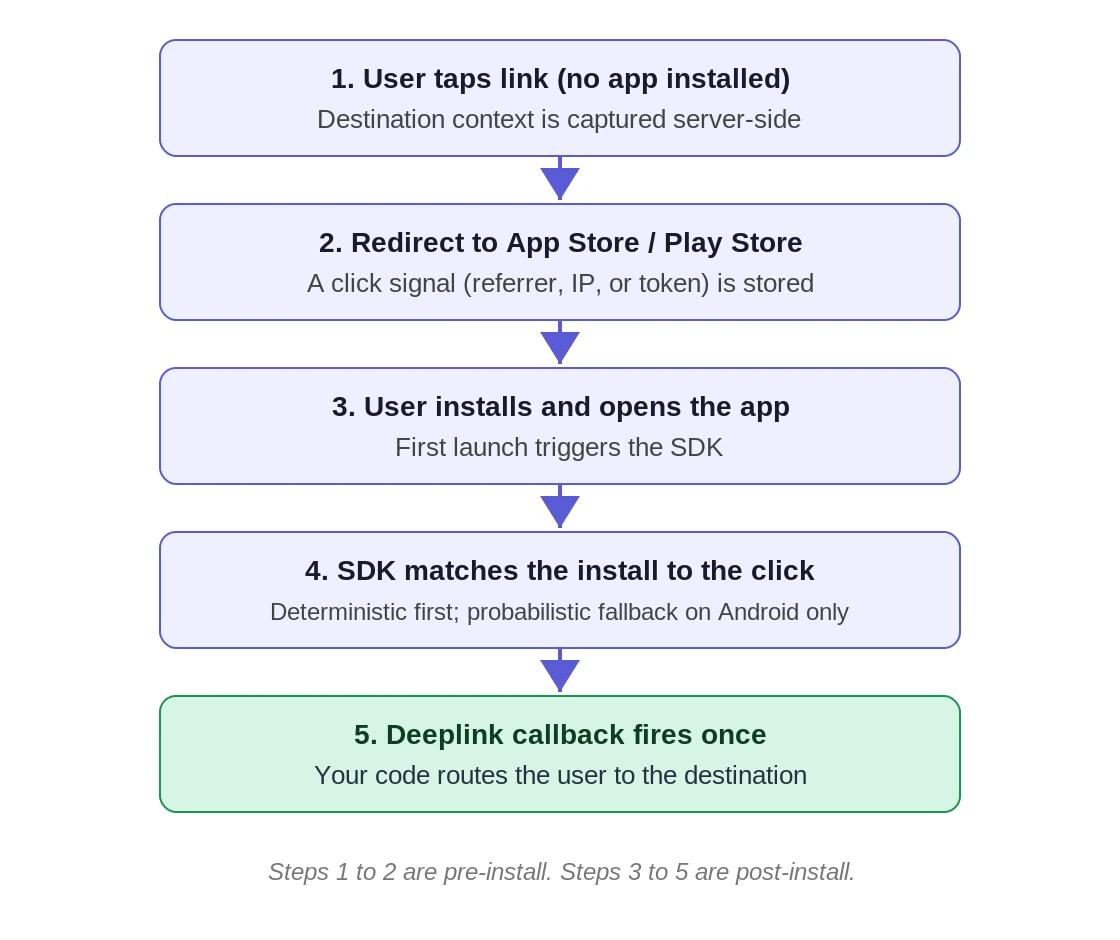
The hard part is step 4, the match. Because the click happens in a browser and the install happens in a fresh app with no shared identity, the system has to reconnect two separate events. How reliably it can do that is the single biggest factor in deferred deeplink accuracy, and it is exactly where iOS and Android diverge.
How to Implement Deferred Routing on iOS
iOS rests on Universal Links plus a matching strategy that works around the absence of an install referrer. Universal Links are HTTPS URLs that iOS can route into your app instead of opening Safari. If you need a primer on how they differ from Android's equivalent, see Universal Links vs App Links.
1. Set up Universal Links and the AASA file
Universal Links are HTTPS URLs that iOS verifies against an apple-app-site-association (AASA) file hosted at the root of your domain. Configure these three things:
-
Host the AASA file at
https://yourdomain.com/.well-known/apple-app-site-association, served over HTTPS with no redirects and a JSON content type. -
List your App ID in the AASA file. The App ID is your App ID Prefix plus your Bundle ID.
-
Add the Associated Domains capability in Xcode with an
applinks:yourdomain.comentry.
When this is correct, a tap on a verified Universal Link opens an installed app directly to the matching screen.
2. Understand iOS matching and the ATT constraint
Here is the core iOS problem: Apple does not provide an install referrer API, so there is no Android-style channel for passing a click identifier through the App Store into a fresh install. iOS matching is deterministic and uses one of two signals:
-
IDFA matching, which ties the click to the install through the advertising identifier. This only works when the user grants App Tracking Transparency (ATT) consent.
-
Clipboard matching, which writes a token to the clipboard on click and reads it on first launch. It works without IDFA, but only when the user permits clipboard access.
What you cannot do on iOS is fall back to probabilistic fingerprinting. Apple has prohibited matching users by IP address and device characteristics since iOS 14.5, regardless of ATT status. That removes the safety net Android still has, which is why iOS deferred match rates drop when ATT opt-in is low and no clipboard token is available. Treat the iOS match rate as a number you monitor, not a setting you configure once.
3. Register the deeplink callback on first launch
On iOS, you register a single deeplink callback. Information about the deferred destination is delivered through that same callback, and it fires only once, on the first launch after install. With Airbridge's iOS SDK, you set this callback during SDK initialization in your AppDelegate, and the deferred destination then arrives through it automatically without separate handling. The exact method signature varies by SDK version, so confirm yours against the iOS SDK setup docs.
The practical rule: parse the URL you receive in the callback, then perform your normal in-app navigation to that screen. If you skip registering the callback, the destination is computed and then silently discarded.
Want to see how Deferred deeplink works with your data?
Get hands-on with Airbridge and see real results.
Try It Free →How to Implement Deferred Routing on Android
Android gives you a more reliable foundation because it exposes a deterministic install signal.
1. Set up App Links and the assetlinks.json file
Android App Links are HTTPS URLs verified against a Digital Asset Links file. Configure these:
-
Host
assetlinks.jsonathttps://yourdomain.com/.well-known/assetlinks.json. -
Include your app's package name and its
sha256_cert_fingerprintsin that file.sha256_cert_fingerprintsis a JSON array, so list every fingerprint you sign with, including the Play App Signing key, as a separate array element. Do not join them into one comma-separated string, which is invalid JSON and breaks verification. -
Declare the matching intent filter with
android:autoVerify="true"in yourAndroidManifest.xml.
When verified, an App Link opens the app directly with no disambiguation dialog.
2. Use the Install Referrer API for deterministic matching
Unlike iOS, Android provides the Google Play Install Referrer API. On install, the Play Store can pass a referrer string that carries the click token, giving you a definitive one-to-one match between the click and the install. This deterministic match is the primary method and is why Android routing is generally more accurate than iOS. When the referrer is unavailable, Android can fall back to probabilistic matching, where accuracy depends on the lookback window: a tight window (for example, 10 to 15 minutes) limits matches to users who clicked and installed in rapid succession and reduces false positives, while a wide window (such as 24 hours) pools unrelated users behind the same IP and creates false matches. Most attribution SDKs, including Airbridge's, read the referrer automatically; your job is to make sure the SDK that reads it is initialized before you query for the deferred destination.
3. Register the deeplink callback
On Android, when the deferred destination is resolved it is converted into a scheme deeplink and passed to your deeplink callback. Deferred destinations are passed to that callback automatically, so no separate handler is required beyond the one you already use for standard deeplinks. In Airbridge's Android SDK this is the deeplink callback you register on the SDK option during initialization; see the Android SDK setup docs for the current method name. As on iOS, read the URL and route the user with your normal navigation logic.
Which SDK Methods to Call: A Quick Reference
The scattered-docs problem usually comes down to one question: which methods do I actually call? Here is the consolidated answer for a provider-managed setup.
| Step | iOS | Android |
|---|---|---|
| Domain association | AASA file plus Associated Domains entitlement | assetlinks.json plus autoVerify intent filter |
| Initialize SDK | Initialize on app launch, in AppDelegate | Initialize on app launch, in Application |
| Register routing | Set the deeplink callback at init | Set the deeplink callback at init |
| Deferred delivery | Same callback, fires once on first launch | Same callback, passed automatically |
| Match method | Deterministic only: IDFA (with ATT) or clipboard token | Install Referrer (deterministic), with probabilistic fallback |
| Forward the link | Pass Universal Link / scheme into the SDK handler | Pass App Link / scheme into the SDK handler |
The one idea to hold onto: standard deeplinks and deferred links share the same callback. You write the routing logic once, and the SDK decides whether the link arrived immediately or was deferred until first launch. You do not write two separate code paths for the destination handling.
Common Implementation Mistakes
These are the failures that produce a working demo but a broken production flow.
-
Forgetting the post-install half. Teams configure Universal Links and App Links, see standard deeplinks work, and assume deferred works too. It does not. Deferred routing only happens if you read the destination from the SDK callback on first launch.
-
A misconfigured association file. A redirect on the AASA path, a wrong content type, a missing Play App Signing fingerprint in
assetlinks.json, or a typo in the App ID will all cause silent verification failure with no error in your build. -
Testing on a device that already has the app. That tests standard deeplinking, not the deferred path. You must uninstall first and install from the store to exercise the real flow.
-
Ignoring the deferred time window. Providers expire the stored destination after a set window. Airbridge's deferred window, for example, is one hour after the click. Install and open the app well inside your provider's window when testing, or you will see the default screen and assume the code is broken.
-
Over-wide probabilistic windows on Android. Probabilistic matching is an Android-only fallback. Setting a long window to lift match rates instead inflates false positives and sends users to the wrong screen, so keep it tight. On iOS, remember that fingerprinting is not available at all, so do not expect an IP-based fallback to rescue a low ATT opt-in rate.
How to Test and Verify Your Setup
Deferred links fail quietly, so a deliberate test pass is the only way to trust the implementation.
-
Validate the association files first. Confirm both
apple-app-site-associationandassetlinks.jsonare reachable over HTTPS, return JSON, and contain the correct App ID, package name, and fingerprints. Apple and Google both publish validators for these files. -
Run a clean install test on a physical device. Uninstall the app, tap your tracking link, install from the store, then open the app. Confirm you land on the intended screen, not the home screen.
-
Test inside the time window. Complete the install-and-open flow within the deferred window, then separately test after it expires to confirm the expected fallback behavior.
-
Test both platforms and both states. iOS and Android, app installed and app not installed, are four distinct paths. Each one needs to pass.
-
Watch your match rate over time. Especially on iOS, treat the match rate as a metric you monitor, not a checkbox. A sudden drop usually points to an OS change or a broken association file.
Get Deferred Deeplink Routing Right Without Stitching the Docs Together
This is not hard because the concept is complex. It is hard because the moving parts live in four different places, and a single quiet misconfiguration sends every new user to the wrong screen.
A managed deep linking solution removes most of that surface area. Airbridge includes deep linking in its Core Plan and Growth Plan: it supports URL scheme deeplinks, App Links, and Universal Links together and automatically selects the right method based on the OS, browser, and install state, so deferred routing arrives through one callback you register once. It also handles the iOS matching problem that breaks most homegrown setups; you can see how that post-IDFA accuracy works in this breakdown of iOS match rates. If you are migrating off Firebase Dynamic Links, or fighting iOS match rate drops after App Tracking Transparency, start with the SDK setup docs linked above and verify on real devices before you ship.



Ready to transform your mobile growth?
Learn how Airbridge helps leading brands measure and optimize every touchpoint.