How to Track TikTok Creator App Installs with Unique Links
Airbridge shows how to give each TikTok creator and video a unique link, compare trials and subscription revenue, and account for installs without link clicks.
Key Takeaway
- Build custom-channel links in Airbridge by mapping each creator to Campaign, the content angle or hook to Ad Group, and the specific video to Ad Creative.
- Measure post-install outcomes beyond downloads by comparing trial starts, First Subscribe (App), and subscription revenue across creators and videos in Actuals reports.
- Keep in mind that link-based attribution only captures users who tap a tracking link, meaning viewers who watch a video and search the store directly will not be tied to that creator.
If you are running a consumer subscription app with a lean team, paying for TikTok creator videos without knowing which posts actually convert into paying subscribers is a quick way to burn your budget. You might see a spike in downloads after a post goes live, yet still have no idea which creator or video drove those users—or whether they ever started a trial. Without a clean way to separate each partner and video, you are left guessing whether to renew a sponsorship or cut your losses. Setting up a structured link workflow before your next post goes live gives you the exact data needed to see which partnerships pay off.
Structuring Campaign Links for Creator and Video Attribution
When you work with multiple creators posting several videos a week, lumping all creator traffic into a single link hides what is actually working. Separating your links by person, content angle, and individual post lets you see whether results come from a specific creator's audience or a repeatable hook.
- Open the custom channel generator. In your dashboard, navigate to
[Tracking Link] > [Link Generation] > [Custom Channels]as outlined in Create Tracking Links in the Airbridge Dashboard. This area is built for owned or earned media used in content publishing or customer engagement, as well as ad channels that are not directly integrated. - Define a dedicated creator channel. Set up a custom channel specifically for your creator traffic, such as
ugc-creators, so these efforts stay distinct from your paid ad networks. - Prepare a naming sheet for every planned post. Before generating links, set up a sheet where every planned video gets its own row. Plan to create one tracking link per row with the parameter fields entered exactly as written on your sheet.
- Map the creator, hook, and video to hierarchy parameters. For each link you generate on your custom channel, assign the creator to the
Campaignparameter, the angle or hook toAd Group, and the individual video toAd Creative. When data starts flowing in, this three-tier structure lets you compare performance by the creator or drill down to the exact video concept.
Setting Up Deep Links, Store Fallbacks, and Pre-Launch Tests
Handing a raw link to a creator without configuring where it sends users—or checking if it records data—can break the user experience on launch day. Setting up proper routing and running a quick device check ensures every tap lands in the right store and registers in your reports.
- Select your primary redirection destination. When configuring Create Tracking Links in the Airbridge Dashboard, Redirection determines where people land after clicking. You can choose
App (Deep Link),App Store, orWebsiteacross both integrated and custom channels, and custom channels also allowAirpageas a desktop destination. Airbridge supports direct and deferred deep linking alongside branded short links, QR codes, and tracking link management tools to keep these links clean in public profiles. - Configure fallback paths for users without your app. Under
[Fallback Path], define where people go if they click a deep-link tracking link before installing the app. For Android, route users to the Google Play Store default listing, a custom store listing (up to 50), or a Web URL. For iOS, send them to the Apple App Store default page, a custom product page (up to 35), or a Web URL. For Desktop clicks, choose a Web URL, the Google Play Store, or Airpage on custom channels. - Deliver links with clear placement instructions. As outlined in Give every creator and video its own link, send each creator their assigned URLs alongside a brief that specifies placing a bio link for the overall run and a pinned-comment link for each individual video.
- Validate the technical setup. The Core Plan includes a tracking link manager, API, and testing console so you can manage and verify links before spending budget. If your engineering team is verifying the integration, developers can validate the setup directly in the Test Console.
- Run a live click-to-install test. Grab a test device, tap one of the generated links, and install the app. Afterward, open
Reports → Actuals, group the view byCampaignand thenAd Creative, and confirm that both your test click and install show up in the exact row you expected.
Comparing Post-Install Trials and Subscription Revenue
For a subscription app, high install counts mean very little if those users never start a trial or convert to paid plans. Once your links are live, Airbridge tracks user journeys across installs, sign-ups, and purchases while aggregating subscription revenue. You can evaluate which creators bring high-intent subscribers using the reporting tools included in the Core Plan.
| Report / Feature | Metrics & Outcomes Measured | Grouping & Comparison Level |
|---|---|---|
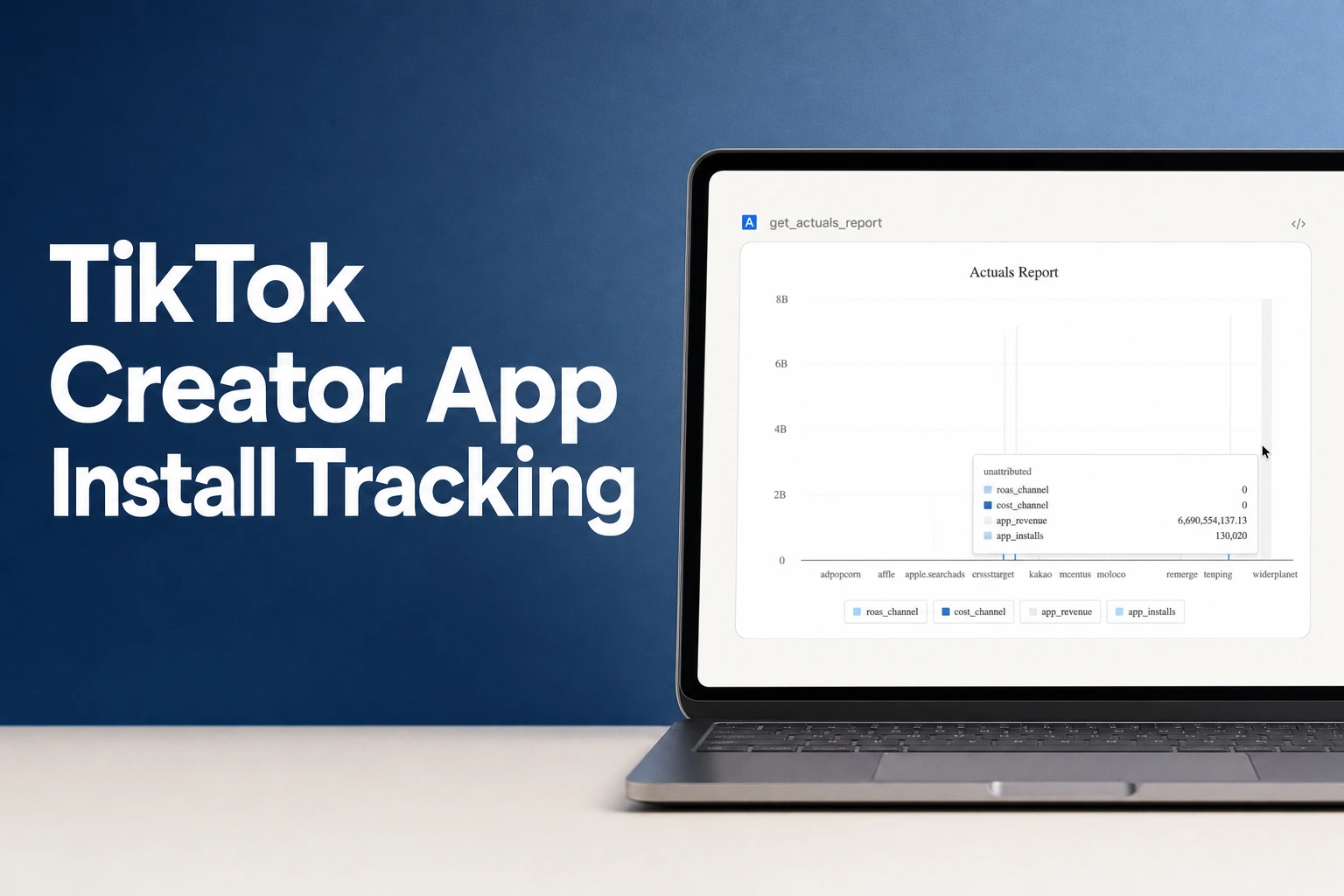
| Actuals Report | Installs, trial starts, First Subscribe (App), and subscription revenue | Grouped across Campaign, Ad Group, and Ad Creative levels |
| Funnel Report | User progression from install to trial start to subscribe | Grouped by Campaign to compare trial-to-paid conversion rates per creator |
| Core Plan Reporting Suite | User journeys across installs, sign-ups, purchases, and aggregated subscription revenue | Revenue, Funnel, Retention, and Cohort reports |
Looking at these views side by side shows you the full picture. If a creator drives hundreds of installs via a viral hook on a specific video, you can check whether that exact post actually generated paid conversions or just surface-level curiosity. Meanwhile, grouping the Funnel Report by Campaign lets you spot which creators bring audiences with the strongest trial-to-paid conversion rates.
Why Organic App Store Searches After Viewing a Video Stay Unattributed
Even with a clean link setup in a creator's bio and pinned comments, many TikTok users will watch a video, close the app, open the App Store or Google Play, and type in your app's name—or even search for the creator's name in the store.
It helps to set realistic expectations with your team before launching a campaign: Airbridge only tracks creator traffic that arrives through a tracking link, and it cannot measure views or installs from organic posts when no link click occurs. When viewers search for a creator's name in the app store instead of tapping the tracking link, those resulting installs will not tie back to that creator.
In App Install: Definition & Measurement Guide, installs from users who discover and download an app without paid-ad influence—such as finding it through an App Store search—are defined as organic installs. In your dashboard, you will see these show up under a separate bucket. As noted in FAQ - Real-time Reporting, the Unattributed Installs (App) metric counts installs that are not attributed to any tracked touchpoint, which applies to these organic installs. Treat your link-driven numbers as a baseline of direct response from each post, while watching your overall unattributed baseline for broader lift during major creator pushes.
Uploading Creator Fees to Measure Return and Cost Per Subscriber
Creator payouts usually happen via invoices or external platforms rather than automated ad networks, which makes it tough to compare creator sponsorships against channels like Meta Ads, Google Ads, Apple Ads, or TikTok for Business. To bring those fees into the same view as your trials and revenue, Cost Data Upload for creator fees is fully included in the Core Plan.
- Choose the right efficiency metrics. Airbridge does not provide a metric labeled
CAC, so you should evaluate creator performance using cost per install, cost per subscriber, or ROAS instead. - Format your creator payout CSV. Following the Cost Data Upload specifications, build a CSV file containing seven required columns:
date(formatted as a string like2022-01-01),channel(string),currency(a 3-letter ISO 4217 code such asUSD),campaign(string),impressions(integer),clicks(integer), andcost(float). - Match your exact parameter casing. When filling in the
channelandcampaigncolumns for your creators, your GroupBy values must match how the dashboard displays them so the spend aggregates properly with your SDK and tracking-link data. For instance, capitalization matters: enteringAndroidwill not aggregate withandroidwhen the system displays the value asandroid. Make sure your creator campaign names in the CSV match the exact strings you used when generating their links. - Upload and review in Actuals. Upload your prepared CSV under
Integrations > Cost Data. Once processed, your uploaded creator fees can be viewed directly in the Actuals Report alongside your conversion metrics to see which partnerships are profitable.
FAQS
FAQ
Should I give a creator one link for their whole sponsorship or a separate link for every video?
Always generate a separate link for every planned video rather than reusing a single URL across an entire sponsorship. If you only hand over one link, you can see whether the creator drove installs overall, but you will not know which specific video concept or hook actually convinced viewers to tap and subscribe.
How do I decide what to put in the Ad Group versus the Ad Creative field for creator links?
Use the Ad Group level to categorize the repeatable content angle or hook—such as a morning routine demo or a pricing comparison—and reserve the Ad Creative field for the individual video post. This lets you aggregate data across multiple creators to see which messaging angles convert best, while still isolating the exact video that spiked your installs.
When should I upload my creator fee data if a creator posts multiple videos over a month?
Coordinate your spreadsheet updates with your team's reporting cadence, such as right after a post goes live or when reconciling monthly invoices. Keeping a shared naming sheet from day one makes it easy to copy the exact campaign strings into your cost file whenever you are ready to review return on spend.
See which videos pay off
Generate custom creator links and compare trial starts and revenue.