How to Track App Installs from a Link in Bio
Track creator installs with Airbridge links, compare creators and video hooks, and learn what link-click attribution cannot measure.
Key Takeaway
- Generate distinct Airbridge Tracking Links on a custom channel for each creator, labeling the creator as Campaign, the angle or hook as Ad Group, and the video as Ad Creative.
- Ensure the Airbridge SDK is inside your app so that installs are counted, then share a bio link for the campaign run and a pinned-comment link for each video.
- Remember that Airbridge only tracks creator traffic coming through a tracking link click, meaning it cannot measure views or attributed installs from organic posts when viewers do not click a link.
When you are paying creators or running a lean user-generated content program, putting a generic store URL in a social profile leaves you guessing which partner or video actually brought users in. If you are searching for how to connect bio-link taps to attributed installs and compare creator performance without drowning in manual spreadsheets, the solution is a structured tracking setup. When you give every creator and video a dedicated link instead of sharing one generic URL, you can trace exactly how profile visitors turn into active users. This straightforward setup lets a small team see which creator partnerships and video hooks drive app downloads and downstream subscription actions, while staying realistic about what link-based measurement can and cannot capture.
Setting Up Campaign Attribution Links for Each Creator and Video
When you are working with multiple creators and testing several content concepts at once, sharing one link across the board hides what is actually working. If two videos go live in the same week and installs spike, a shared link will not tell you which creator or hook caused the lift. Setting up a structured link hierarchy before anyone posts keeps your reporting clean from day one.
- Define your Custom Channel for the creator program: Start by grouping all of your creator activity under a dedicated Custom Channel so it stays separate from your other acquisition sources. In the Give every creator and video its own link playbook example, the Custom Channel is set to
ugc-creatorsto represent the overall program. - Assign the creator, angle, and video to your link parameters: You can generate Airbridge Tracking Links for each creator on a custom channel by setting the creator as Campaign, the angle or hook as Ad Group, and the video as Ad Creative. Following the playbook example, you would label Campaign as
creator-maya, Ad Group asangle-gym-confusion, and Ad Creative ashook-bfor the specific video or hook variant. Keep in mind that while the UGC Playbook suggests mapping Campaign to the creator, Ad Group to the angle, and Ad Creative to the video, this is a helpful recommendation rather than a rigid product rule. You have the flexibility to adapt the labels to how your team organizes content, though sticking to a consistent structure makes comparing hooks much easier later. - Generate the links and assets in the dashboard: Once your parameter names are ready, head to the tracking-link creation flow in the dashboard. Clicking "Create tracking link" in DeepLink - Create Tracking Links in the Airbridge Dashboard produces both a standard tracking link and a shortened version, along with a social share preview and a QR code. Having that shortened URL ready out of the box is especially handy when creators are pasting links into character-limited social bios or comments.
Preparing Your App SDK Before Campaign Links Go Live
Creating links in the dashboard is only half of the connection. If you hand out links to creators before your app is ready to receive the data, people will tap the bio link and download the app, but your reports will stay blank.
App installs are only counted once the Airbridge SDK—the actual code embedded inside your app—is in place. You do not need a massive engineering team or weeks of back-and-forth to get this running. In the Airbridge Core Plan, you get mobile SDKs alongside direct and deferred deep linking, tracking link tools, and testing consoles. Your developers can set up the Airbridge Core Plan SDK through self-serve installation, log predefined events, and verify that everything is firing properly inside the Test Console. Taking a moment to confirm your setup in the Test Console before the first creator video goes live saves you from losing attribution data on launch day.
Where Creators Should Place Tracking Links Across Bios and Posts
Once your SDK is verified and your links are generated, you need to make sure every tap is captured and routed properly. When a viewer taps a Tracking Link, it records the click, routes the person to the appropriate app store, and matches the subsequent install and in-app events back to that initial click. Because the entire connection depends on that click path, how you organize and place those links matters.
To keep link distribution organized across multiple videos, the creator-link playbook recommends a setup checklist that uses a Custom Channel like ugc-creators, a naming sheet where every planned video gets its own row, and one distinct Tracking Link per row with all fields filled out as written. For placement, the checklist calls for giving each creator a dedicated bio link for the duration of the campaign run, plus a separate pinned-comment link for each individual video. Giving both ensures that whether a viewer clicks straight from a video's comment section or clicks through to the creator's profile first, you capture the click.
Depending on which social platforms your creators use, you can also place links across other profile and post surfaces. For instance, according to the Custom Channels guide, putting a Custom Channel tracking link into a Facebook Page profile link lets you track app installations and events attributed to the website. You can also insert Custom Channel tracking links directly into individual posts so you can track app installations and in-app events generated by each specific post.
Comparing Attributed Installs and Funnel Results Across Acquisition Sources
After your creators post their videos and traffic starts flowing through your links, you want to see more than just raw click numbers. For a small team watching every dollar of creator spend, knowing which creator brings in users who actually start trials and pay is what helps you decide who to rebook.
| Report Name | Available Breakdowns | Metrics and Journey Stages You Can Review |
|---|---|---|
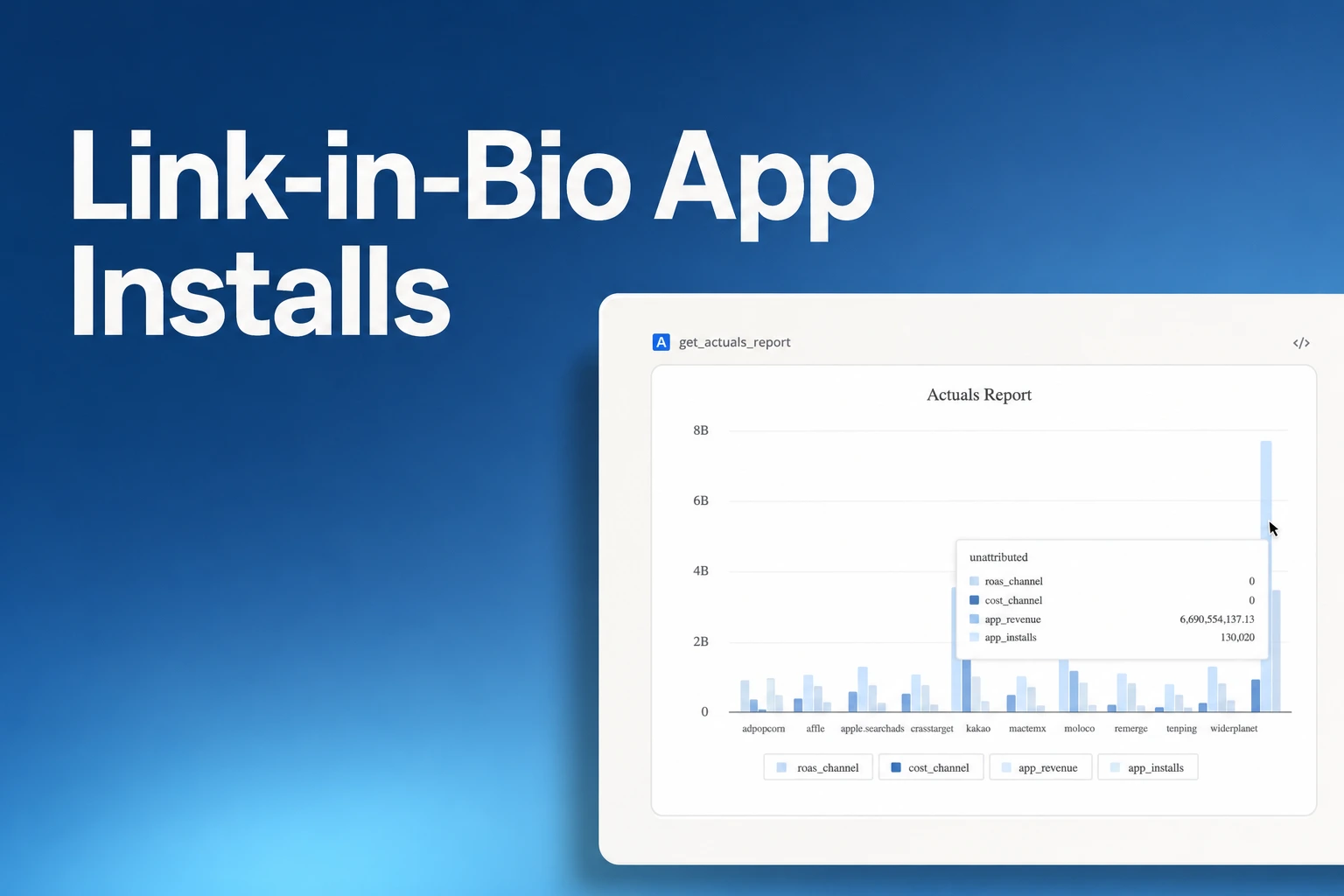
| Actuals Report | Campaign, Ad Group, and Ad Creative levels | Installs, trial starts, First Subscribe (App), and subscription revenue |
| Funnel Report | Broken down by Campaign | User progression from install to trial start to subscribe for creator-level trial-to-paid comparisons |
When you want to inspect both the creator and the specific video hook side by side, start by reading your three parameter levels together in the first view. Because you mapped Campaign to the creator, Ad Group to the angle, and Ad Creative to the video during setup, grouping by these three levels immediately shows you which video variant drove not only attributed installs, but actual subscription revenue.
If you notice a creator is driving plenty of downloads but few paying users, switch over to the Funnel report. Seeing where drop-offs happen by creator helps you spot whether a creator's audience is genuinely interested in your app's core value or just clicking out of passing curiosity.
Understanding Attribution Limits for Organic Creator Views Without Link Taps
Tracking links give you clean, deterministic data when people click them, but as a founder or marketer running creator campaigns, you also need to know what happens when viewers do not click. Social video platforms are built to keep users scrolling inside the feed rather than clicking out to external profiles.
Airbridge only tracks creator traffic that comes through a tracking link, meaning it cannot measure video views or installs resulting from organic posts when no link click occurs. A Tracking Link measures the people who actually tapped it; if a viewer watches a creator's video and then opens the app store on their own to search for your app, those installs will not be tied back to that creator.
This behavior is especially common on short-form video platforms. As highlighted in Influencer Attribution Tracking: Promo Codes vs Tracking Links -- Which Actually, during TikTok and Instagram influencer campaigns, people frequently watch a piece of content and then search for the app directly instead of clicking a link, which means click-based attribution misses the majority of influencer-driven installs on those platforms. Knowing this limitation upfront prevents you from undervaluing a TikTok or Instagram creator whose videos generate high search volume, and helps you read your link-click numbers as the confirmed floor of creator performance rather than the entire picture.
FAQS
FAQ
How should I organize my naming conventions before sending links to multiple creators?
Before you hand out any URLs, set up a naming sheet where every planned video has its own row and write out your exact labels for each creator, content angle, and hook variant. Keeping this sheet updated ensures that you generate a distinct link for every single video rather than accidentally reusing links across different posts.
Should I judge a creator partnership solely by the install numbers shown in my link reports?
Treat your link-based install numbers as the confirmed baseline of what a creator delivered rather than their total impact, since many viewers on short-form video platforms watch a video and search the app store directly instead of tapping a link. When deciding which creators to rebook, pair your conversion rate data from those who did click with how your overall organic store searches moved when the videos went live.
See which bio links work
Create custom creator links and measure attributed installs today.