How to Compare TikTok Spark Ads With Organic Creator Video Results
Learn how to match organic and boosted creator videos in Airbridge, compare subscriptions, revenue and ROAS, and decide whether paid reach is worth scaling.
Key Takeaway
- Match the boosted ad name to the organic video name so the organic entry under
ugc-creatorsand the paid ad channel entry sit next to each other for a side-by-side comparison. - Evaluate the boosted video by downstream subscribers rather than view counts, comparing Installs, Start Trial, Subscribe, Revenue, and Total ROAS (Channel) grouped by Channel and Ad Creative.
- Connect your ad account through Integrations so cost and return on ad spend populate automatically on the boosted row, and use Cost Data Upload if you want to add off-platform creator fees to the organic side.
When a creator video takes off organically, putting ad spend behind it is a logical next move. The hard part for lean subscription app teams is figuring out whether that paid reach actually brings in paying subscribers worth scaling, or just inflates your surface-level view counts. Instead of jumping between creator spreadsheets and ad manager tabs to guess which version worked, you need a clean way to pair the organic post and the paid boost as the exact same video and trace both paths all the way to subscription revenue.
Matching Organic and Boosted Video Rows in Your Report
If you want to know whether paid spend is actually adding value to a winning creator video, your reporting has to recognize the organic post and the paid boost as the exact same piece of creative. If the names or accounts don't match, your metrics split into disconnected silos and you end up guessing which version drove your trial starts. Following a consistent setup in Airbridge keeps the video's organic and paid rows together in your report.
- Run the boost from the creator's own handle: A boosted post means putting ad budget behind the exact same post directly from the creator's account rather than downloading the video and reposting it from your brand's account. Keeping the boost on the creator's original post preserves the context that made the video work in the first place, whereas reposting from a brand handle turns it into a separate asset.
- Set up your custom channel link hierarchy: When generating an Airbridge tracking link on a custom channel like
ugc-creators, structure your parameters by setting the creator as the Campaign, the angle or hook as the Ad Group, and the specific video as the Ad Creative. This three-part naming structure gives every organic video a clear identity in your analytics from the moment the creator posts it. - Copy the exact organic video name into your ad manager: When you set up the paid boost, give the boosted ad the exact same name you used for the organic video's Ad Creative parameter—such as
hook-b—so the organic and boosted rows line up in your report. Keeping this naming identical is what lets your reporting recognize the paid ad and the organic tracking link as the same video creative. - Place the organic and boosted rows side by side: Once your naming matches, open your report to view the exact same video displayed in an organic row under
ugc-creatorsright beside its boosted row under the paid ad channel. Having both rows aligned lets you scan across a single video creative and immediately see how paid distribution stacks up against organic traffic.
Choosing Engagement Metrics and Subscription Outcomes to Compare
A boosted video will almost always get more views because you are paying for reach, so as the UGC Growth Playbook for Subscription Apps notes, you should judge the boosted version by subscribers rather than views. To see if paid reach is actually bringing in valuable users for your subscription app, you need to look past top-of-funnel engagement and compare what happens after the install. Airbridge gives you two core reporting views to measure how organic and paid users move toward a paid plan.
| Report Type | Metrics Included | Grouping & Hierarchy Options | How It Helps You Judge the Boost |
|---|---|---|---|
| Actuals Report | Installs, Start Trial, Subscribe (first app subscription), Revenue (subscription revenue), and Total ROAS (Channel) | Groups across three hierarchy levels; group by Channel and Ad Creative for direct comparison | Shows side-by-side volume, subscription revenue, and ad return for the organic and paid rows of the same video. |
| Funnel Report | Step-by-step progression from install to trial start to subscription | Splits each step by channel, campaign, or creative | Lets you compare trial conversion rates across creators and see if boosted traffic drops off before subscribing. |
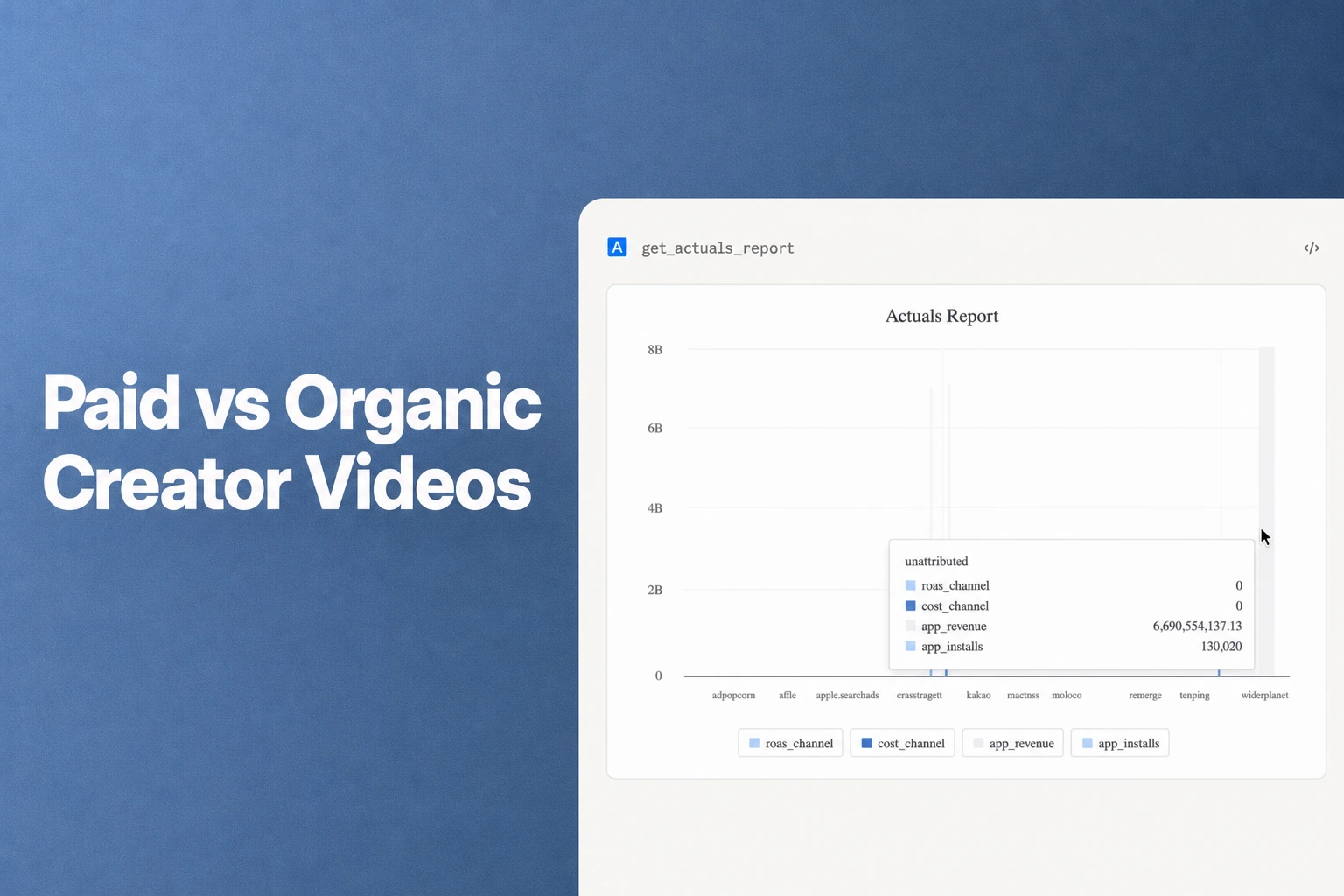
In the Actuals report, adding Installs, Start Trial, Subscribe, Revenue, and Total ROAS (Channel) and then grouping by Channel and Ad Creative puts your volume and revenue numbers into a single view. Because the Actuals report groups installs, free trial starts, first app subscriptions, and subscription revenue across three hierarchy levels, you can drill down from the channel level straight to the individual video.
If you notice that a boosted video is driving plenty of installs in Actuals but very little revenue, switch over to the Airbridge Core Plan Funnel Report, which starts at $40+/mo (as of October 2026) and follows users from install to subscription while splitting each step by channel, campaign, or creative. By laying out the stages from install to free trial start and final subscription by campaign, the Funnel report makes it easy to compare trial conversion rates per creator and spot whether paid traffic converts as well as organic traffic.
What Creator Links Attribute and What Organic Reach Misses
Before you make budget decisions based on these rows, it helps to understand exactly what lands in your report and what stays invisible. On a custom channel, you issue a unique Airbridge tracking link to each individual creator, and the platform measures results at the campaign, ad group, and ad creative levels. Because Airbridge measures creator traffic that comes through that tracking link, it does not attribute views or installs from organic posts where the user never clicked the link.
This tracking boundary explains why a creator video can look huge on a social feed while showing modest numbers on its organic row, or why it behaves differently once you put money behind it. An organic hit earns its views as a regular post in a feed where viewers aren't being asked to click anything, whereas a boosted repost is delivered as an ad equipped with a direct click target. When you compare the two rows, remember that the organic row only captures the highly motivated viewers who sought out and tapped the creator's link, while the boosted row captures users who tapped the paid ad's call-to-action button.
Comparing Paid Ad Spend With Organic Creator Costs
Seeing subscribers on both rows is great, but deciding whether to scale a boost comes down to what you paid for those subscribers. Organic posts do not carry cost data automatically in your reports. In contrast, boosted posts run from the creator's own account—as well as UGC-style ads run as normal ads from your own account—can carry cost automatically once you connect the ad account used for the spending.
Connecting the ad account you use for boosting through the Integrations menu pulls both your ad spend and your ad names straight into Airbridge. Because that spend flows in from the connected ad account, return on ad spend (ROAS) on the boosted row is calculated automatically without any manual spreadsheet work.
If you paid the creator a production or sponsorship fee outside of the ad platform, your organic row will initially show zero cost alongside its revenue. To get a true picture of your total investment, you can add those off-platform creator fees using Cost Data Upload (found under Integrations > Cost Data > CSV File Upload). As long as your uploaded CSV uses the exact same Campaign, Ad Group, and Ad Creative names as your tracking links, Airbridge will calculate your cost per install and ROAS per creator on the organic side too.
FAQS
FAQ
Can I measure a creator's results all the way to a paid subscription without an enterprise contract?
Yes, the Airbridge Core Plan supports measuring creator campaigns down to each individual creator and single video, following users from the initial install through to their first paid subscription.
Do I need an add-on to see my ad spend and subscription revenue in the same place?
No, the Airbridge Core Plan includes both cost and ad spend aggregation as well as subscription revenue aggregation as standard features.
How do I know when a creator video is worth scaling with paid ad spend?
Look for an organic video that is already converting viewers from install to trial and paid subscription rather than just racking up feed views, and once you put ad budget behind it, check that the paid traffic maintains a healthy trial conversion rate and return on ad spend before increasing your budget.
See Which Boosts Convert
Compare organic creator videos and boosted ads up to subscription.