Testing Attribution in TestFlight Without Polluting Production Data
Choose Development Mode for staging and development, register test devices to bypass log sampling, and check ATT and EPC effects on deep-link logs.
Key Takeaway
- Development Mode is the general choice for staging or development apps that need testing during development, and an app's mode cannot be changed after creation.
- Register your test device identifiers so every test event bypasses log sampling and shows up in your real-time logs.
- Check your iOS ATT prompt status and app-level Extended Privacy Control (EPC) setting, which govern whether Deeplink Open events use probabilistic matching and appear as unattributed in logs.
TestFlight is where most iOS teams check a build before release, and it is the natural place to confirm that tracking links, deep links and install attribution work. A clean test depends on how Airbridge handles link routing, app modes and test device registration.
iOS Test Attribution Limits
Testing on an iOS device before a live store release comes with specific constraints around user privacy states and link routing. When you trigger Airbridge Deep Linking Test for Marketers on an iOS test device where tracking is turned off—or if you have not yet responded to the App Tracking Transparency (ATT) prompt—Deeplink Open events are attributed using probabilistic matching.
Your app-level privacy configurations also change what you see during these tests. If you have app-level Extended Privacy Control (EPC) turned on, any Deeplink Open events that were attributed via probabilistic matching will show up as unattributed in both your real-time logs and raw data exports. If you are staring at your logs wondering why a test click did not get credit, check your ATT status and EPC toggle first.
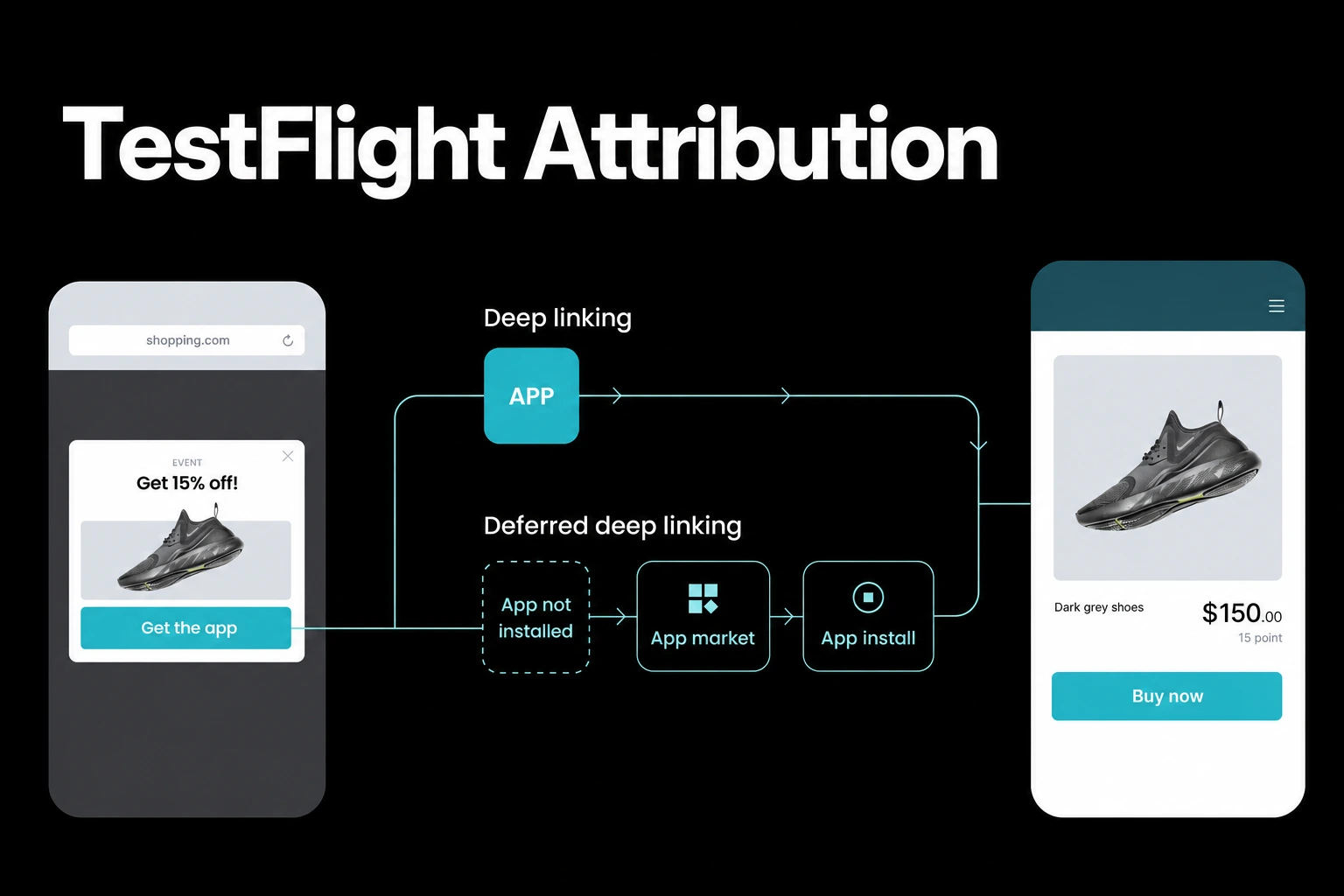
When you want to verify how a link behaves for someone who does not have your app on their phone yet, Scenario 2 in DeepLink - Airbridge Deep Linking Test for Marketers checks whether deep linking works as intended for uninstalled users and lets you run one deferred deep-linking test.
How Deep Links Route
When a tracking link is triggered, Airbridge launches the app with the most appropriate type of Airbridge Deep Link, depending on the browser and whether the app is installed on the device.
To support these different environments across platforms, Airbridge supports Universal Links alongside URL scheme deep links and App Links. You can check and update deep-link information on the Tracking Links > Deep Links page.
Separating Test and Live Data
Choosing an app mode is covered in 1. Preparing for Airbridge Implementation. Airbridge gives you two distinct options when registering an app:
- Development Mode is the general choice for staging or development apps that require testing while you build.
- Performance Measurement Mode is the general choice for production apps used to measure live advertising performance.
An Airbridge app's mode is permanent and cannot be changed once the app is created. That said, if you do not have a separate development app, creating a separate one is not required—setting up only a Performance Measurement Mode app is completely acceptable.
Registering Your Test Devices
Once you start firing events from your phone, you will likely open the dashboard to watch them arrive. By default, events in Real-Time Logs are sampled, meaning some of your test events might not appear on the screen. You can register your test identifiers in Real-time Logs in the Airbridge dashboard at Raw Data > Test Identifiers. Events coming from registered test identifiers bypass sampling so that every single event shows up in Real-Time Logs.
Follow these steps to run a clean test on your device:
- Register your test identifier at Raw Data > Test Identifiers; for App Real-time Log, the Device ID test-identifier type uses your test device's advertising ID (ADID).
- Wait about 10 minutes after registration for the test identifier to take effect, keeping in mind that registration is not applied retroactively to events you already fired.
- If you are running an attributed-install test as outlined in Testing - iOS SDK, make sure the app is uninstalled on your test device—if the app is already on the phone, delete it before you start.
- Navigate to Settings > Testing Console, open the Attributed Installs tab, and enter your test device's device ID, making sure to include the hyphens.
Moving to App Store Release
Before you wrap up your verification in Testing the Airbridge SDK Integration for Marketers, make sure the Airbridge SDK is installed in your build. For iOS apps, confirm that your ATT prompt is implemented and that the Tracking Authorize Timeout is set long enough to wait for the user's ATT response. You can run your final deep-link verification inside the Airbridge dashboard by going to Settings > Testing Console and selecting the Deep Linking tab.
During migration in Migrating to Airbridge, releasing the app with the Airbridge SDK installed is required Step 7 of the migration process. If you are setting up your production workspace on the Core Plan, you get a 30-day free trial followed by $40+/mo (USD) with 500,000 data points/month included ($0.0001 per additional data point) and no annual lock-in.
FAQS
FAQ
Why are my test events missing right after I register my device ID?
A newly registered test identifier takes about 10 minutes to take effect and does not apply retroactively to events triggered before that window finishes. Wait about 10 minutes after adding your device at Raw Data > Test Identifiers before firing new test events.
Why do my iOS deep link tests show up as unattributed in the logs?
If tracking is off or you have not answered the ATT prompt on your iOS test device, Deeplink Open events rely on probabilistic matching. When app-level Extended Privacy Control (EPC) is turned on, those probabilistically matched Deeplink Open events are recorded as unattributed in real-time logs and raw data exports.

Test before you go live
Register your test device IDs and verify deep links in the dashboard.